.png)
You will need to be an Administrator on the Axscend Portal to complete the following steps.
For assistance, please get in touch with your administrator or support@axscend.com.
Axscend - Create a new user
You should start the integration by creating a new user account.
-
Navigate to Manage Users:
-
Click on the Admin menu
-
Click Manage Users
-
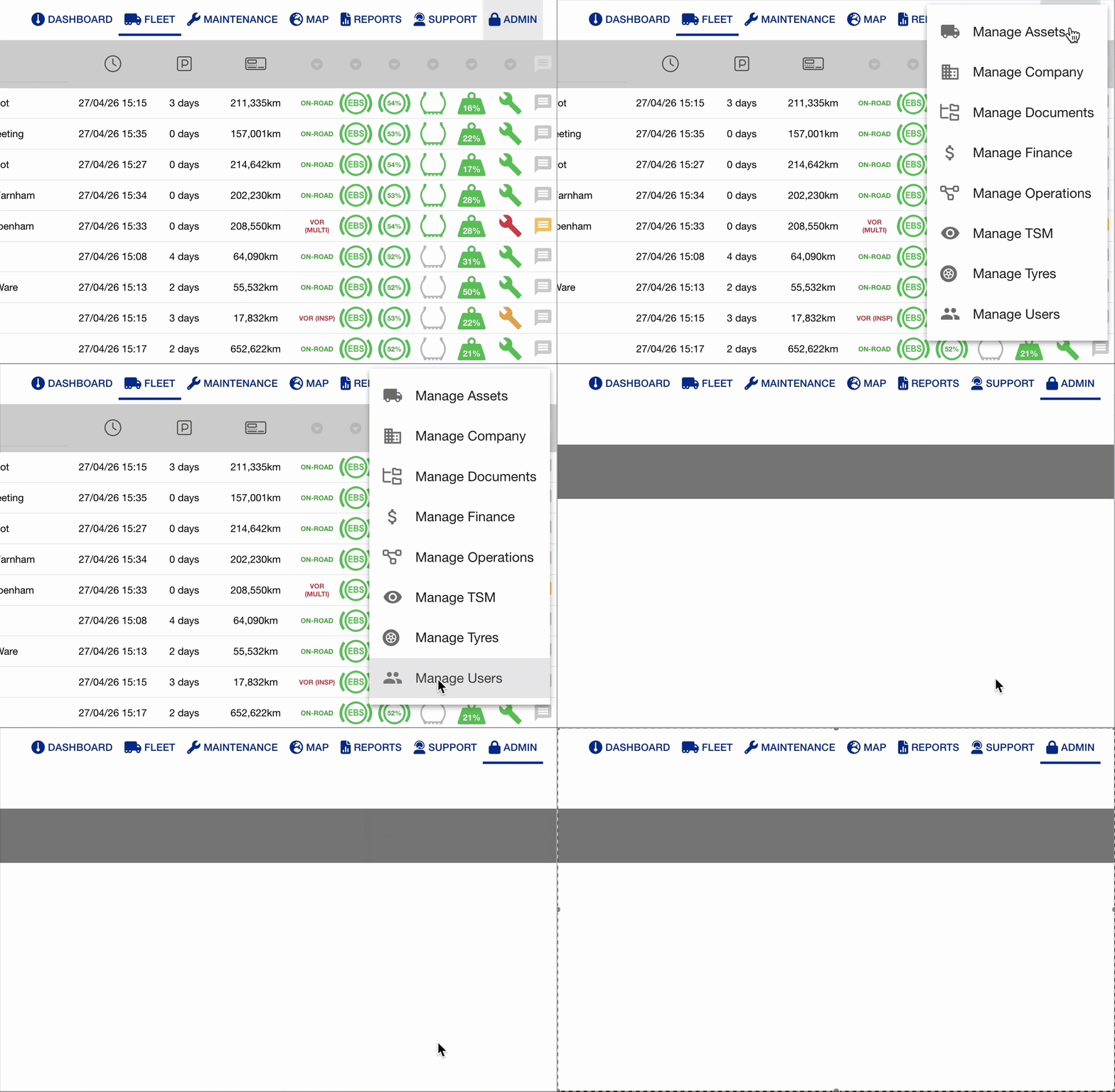
-
Click the + Add button to add a new User
-
Fill out the relevant details
We strongly recommend that this should be a generic user account rather than an individual user's personal account. This account should be named and associated with Project 44, as per the example below.
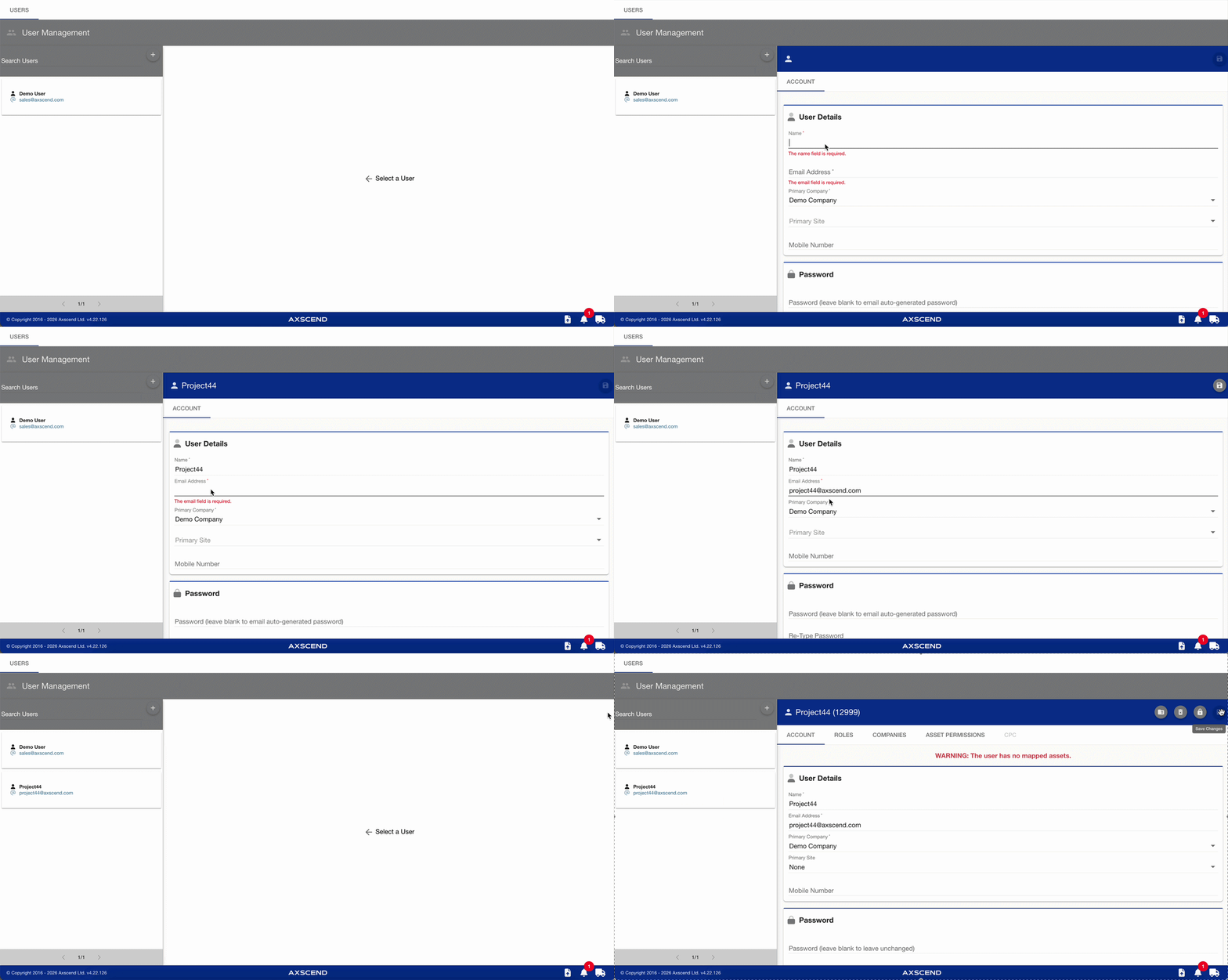
-
Click Save
Assign Permissions
Next, you will need to assign asset permissions to the user account relevant to the integration. To do this, continue on the Manage Users page.
-
Click on the Asset Permissions tab
-
Assign the relevant Assets
-
Click Save
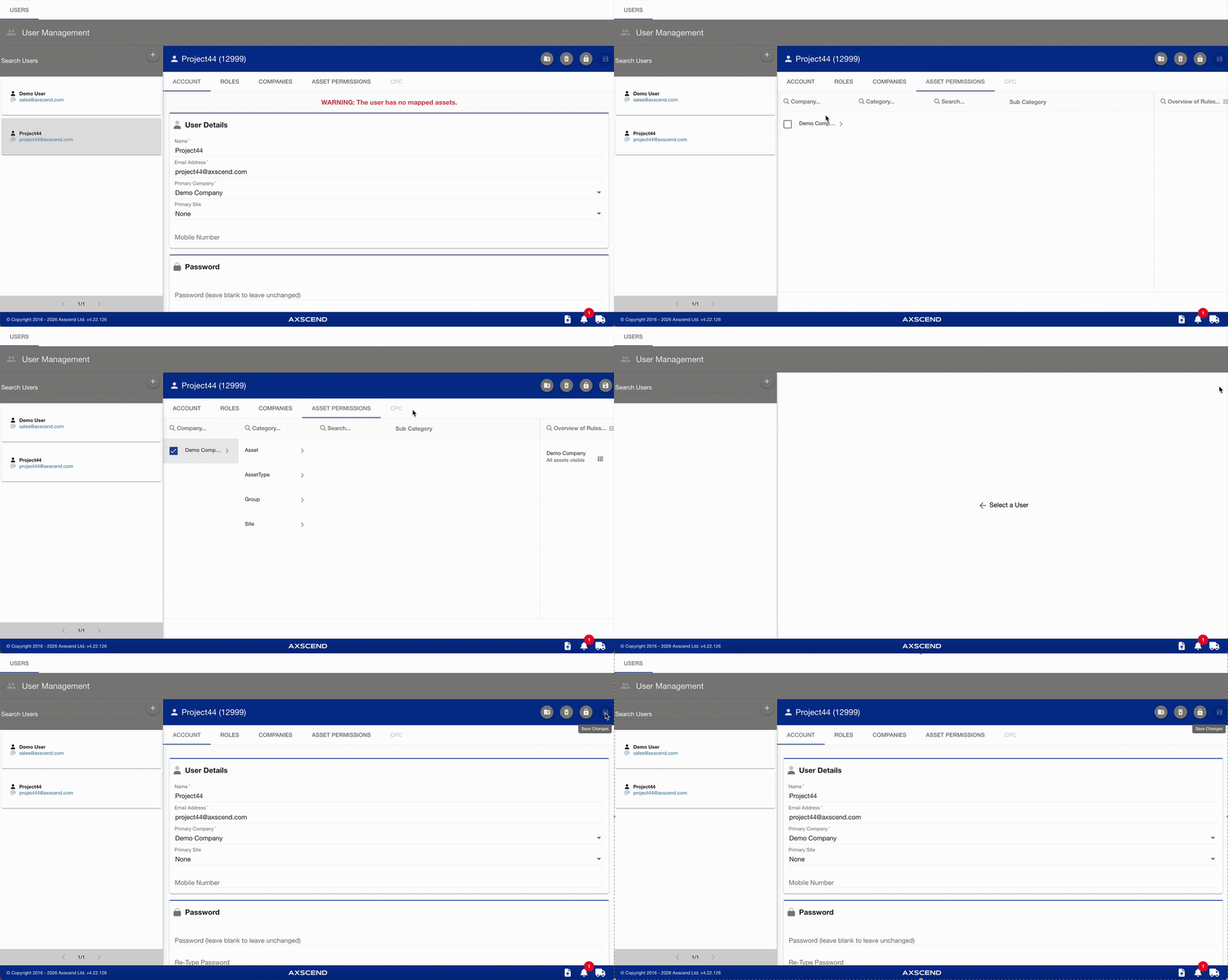
Next Steps
You will now receive a Password Setup email to the provided email address. From here, you should follow the steps detailed to set a password.
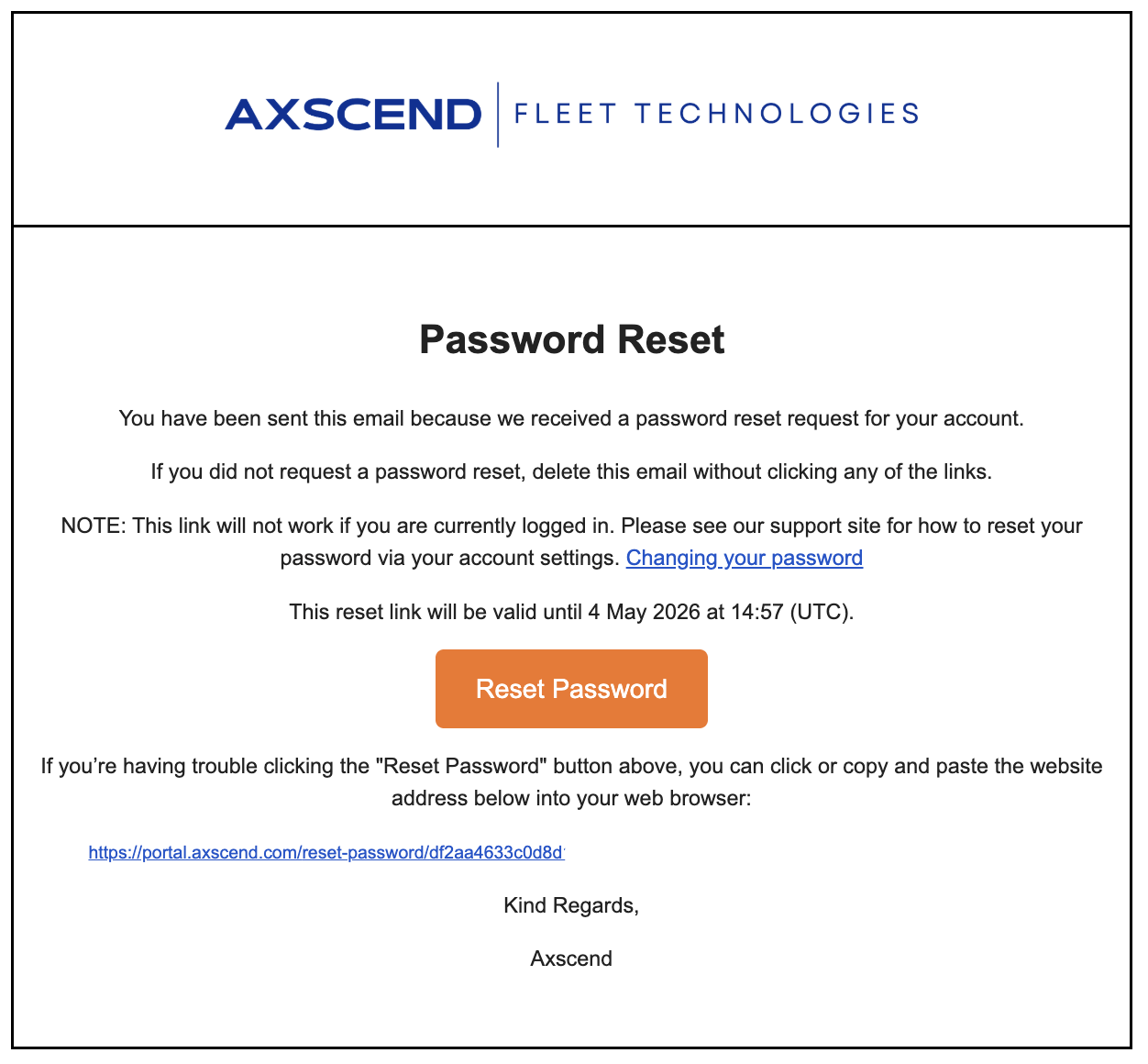
If you’re logged into the portal on your personal account, you will either need to log out or copy the password setup link to a new in-private browsing window.
You will now need to add the newly created credentials to Project44.
Project44 - Integration
To connect your Axscend Fleet Technologies fleet with Project44:
-
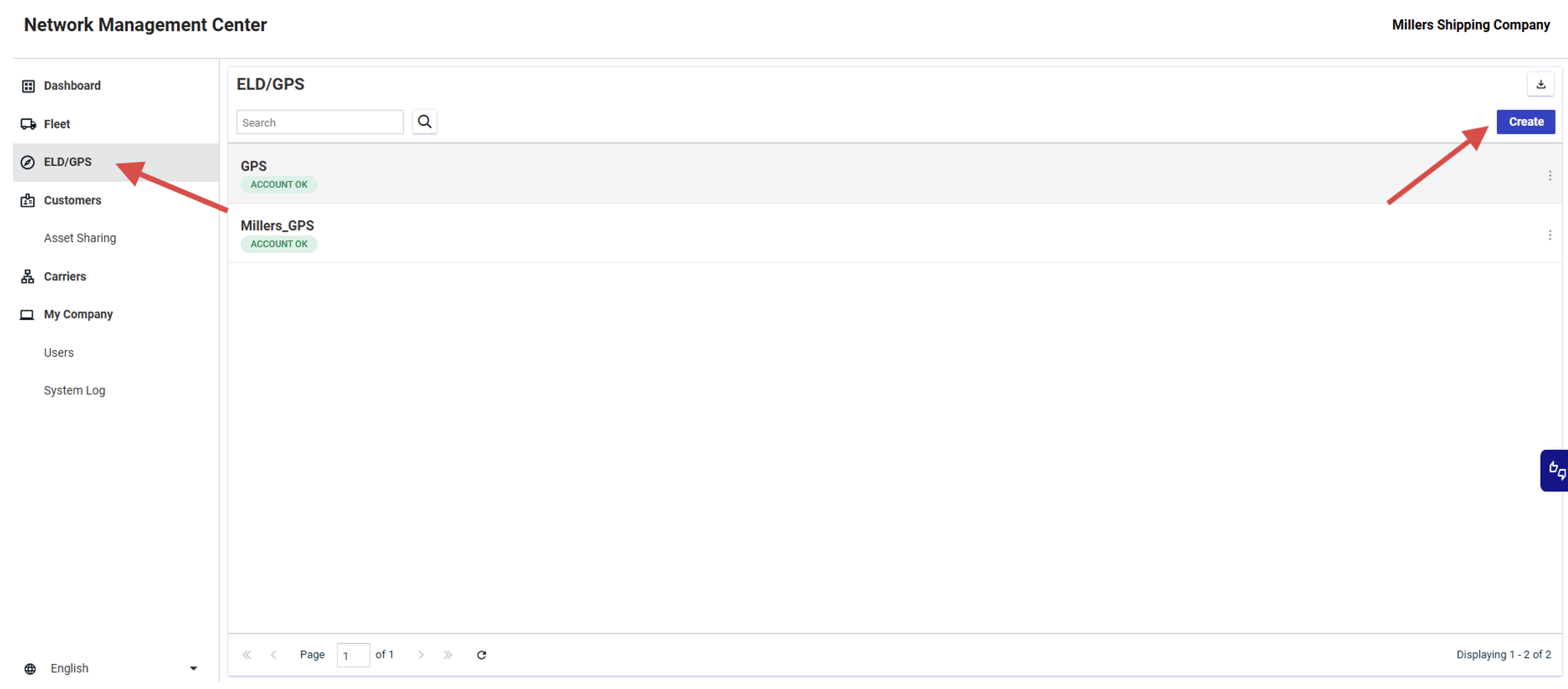
Click on the ELD/GPS button in the sidebar.
-
Click CREATE.
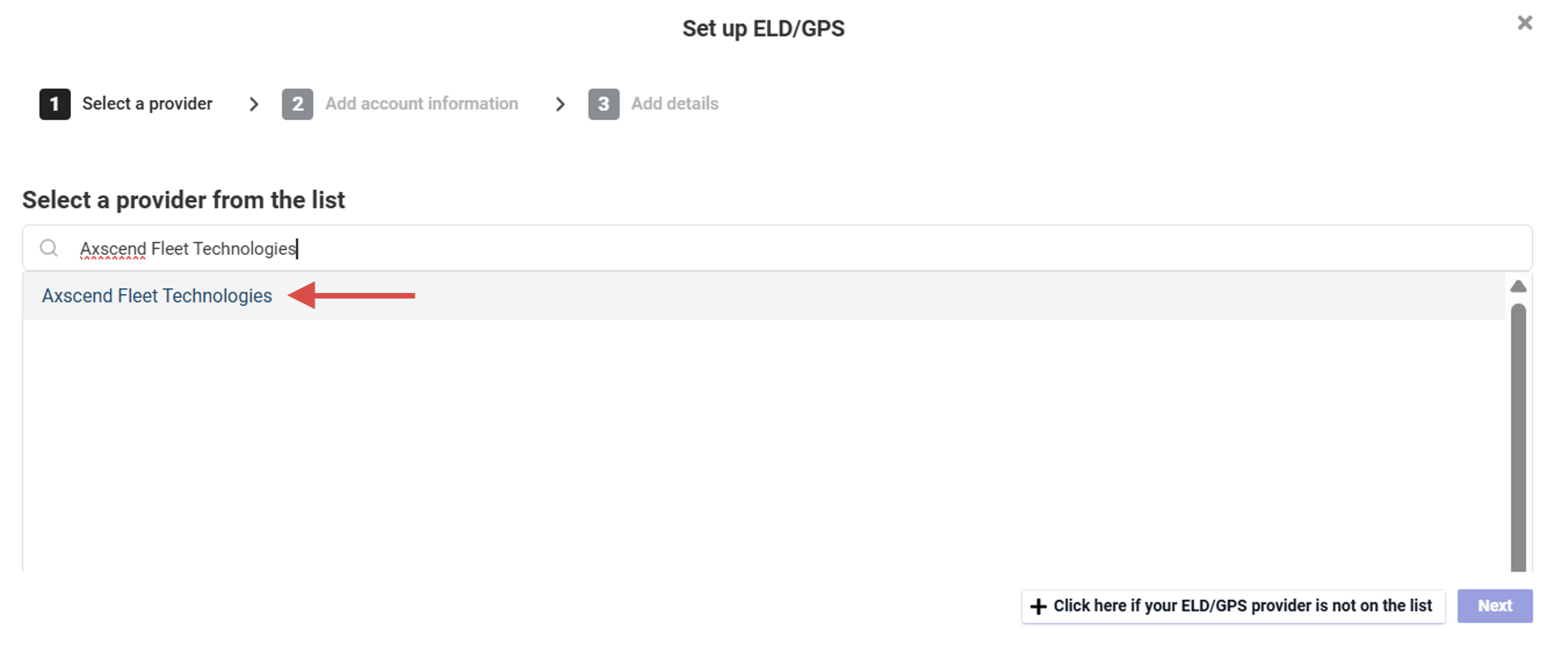
The Set up ELD/GPS screen appears.
-
Search and select Axscend Fleet Technologies from the list of telematics providers.
-
Click Next
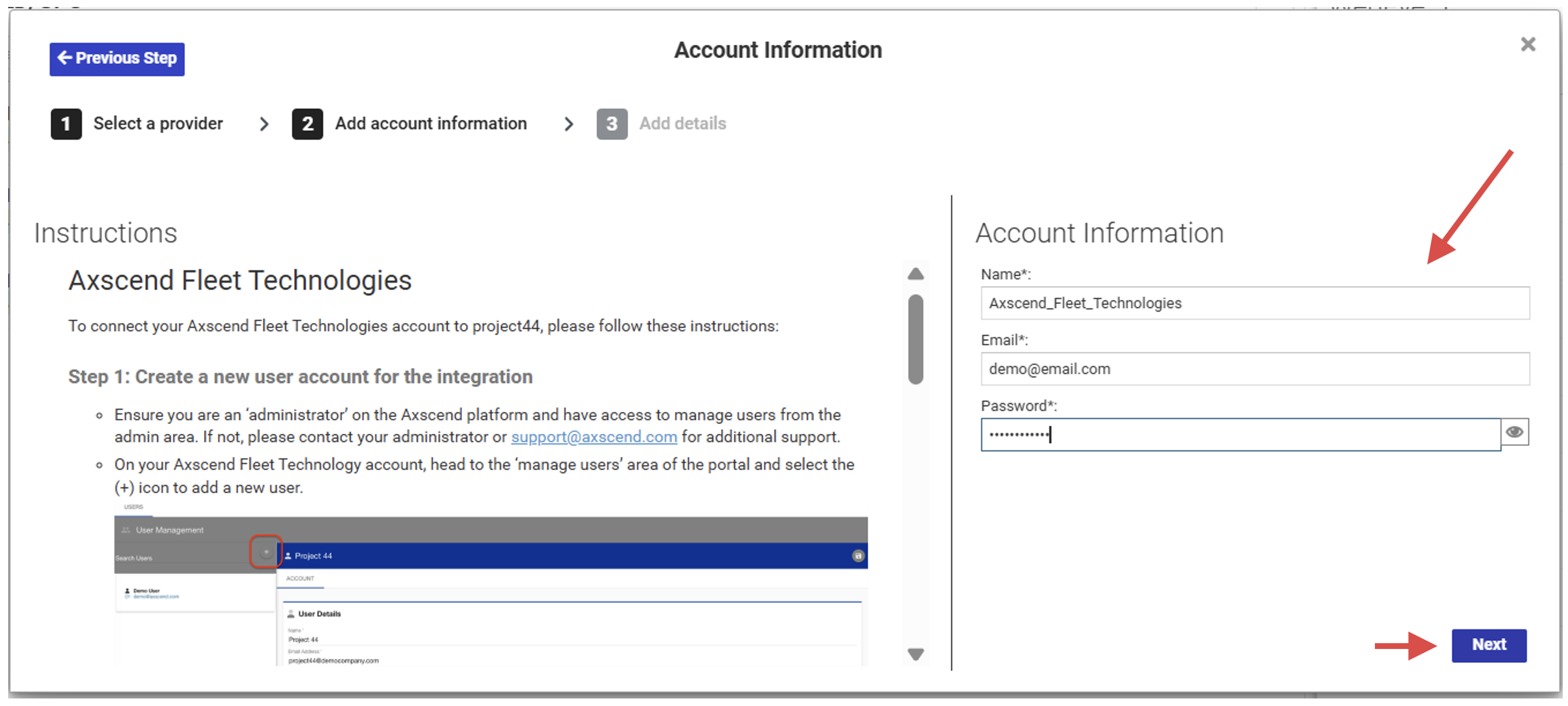
The left side of the pop-up window will show full instructions to complete the integration. You should have completed these steps already by followinghttps://axscend.atlassian.net/wiki/spaces/aug/pages/edit-v2/2431942657#Axscend---Create-a-new-user.
-
On the form on the right, fill in the details of the Project44 Axscend User you created.
-
Click Next
Project44 and Axscend should be integrated.
To check that your telematics connection was set up correctly, check if the status in the ELD/GPS tab says ACCOUNT OK.
Please wait a few minutes before checking; this might take a while.