.png)
View your assets and Points of Interest (POIs) together on the Maps page.
🧭 Getting to Maps
-
Click Map in the navigation bar.
The Map page will open.

📚 Map Information
|
No. |
Description |
|---|---|

|
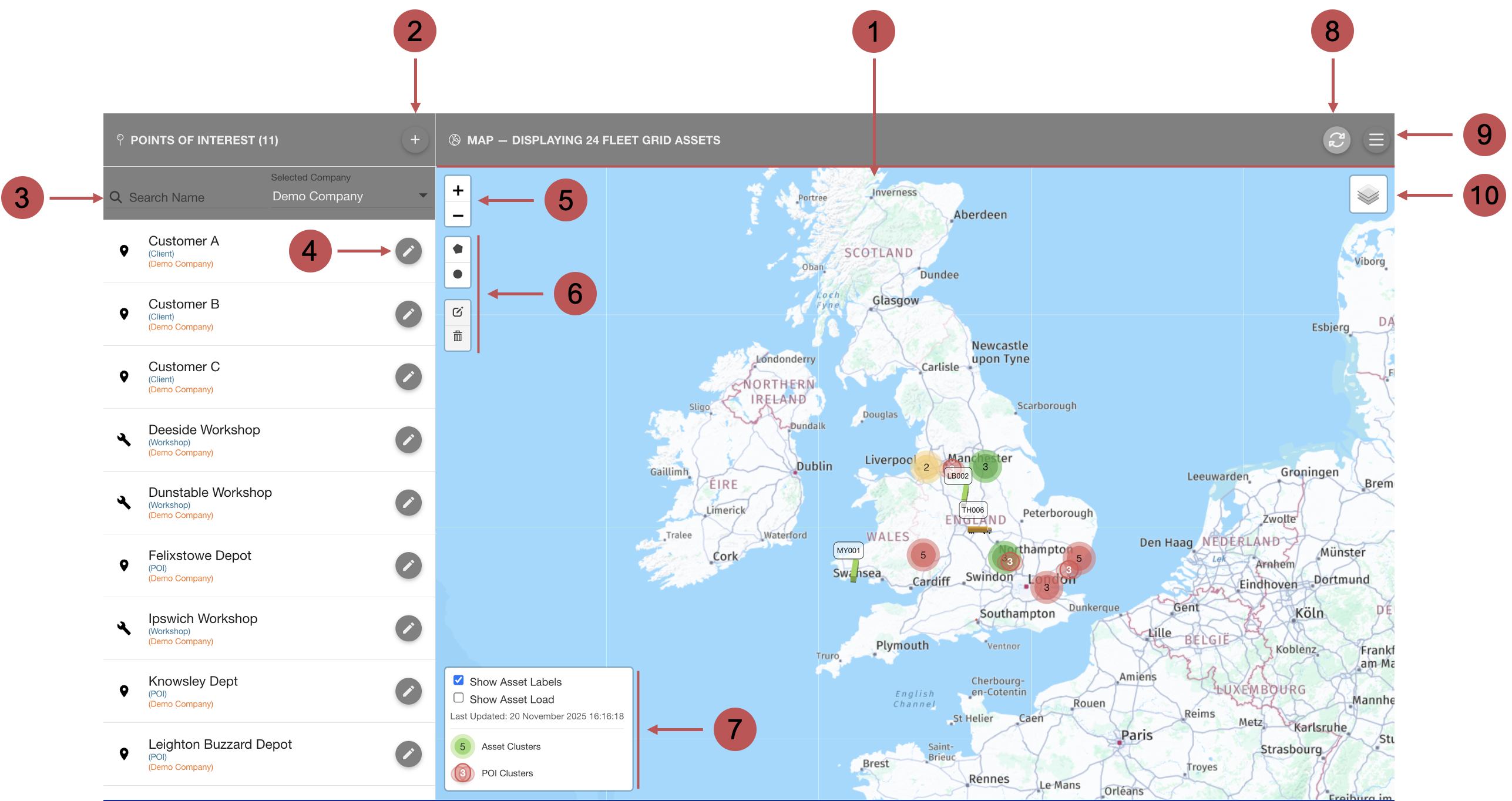
Map Panel Here you will see your POIs and Assets displayed. |

|
Adding a POI You can add a new POI by clicking on this button. |

|
Search and Filters Filter large lists of POIs as necessary. |

|
Editing a POI You can edit existing POIs by clicking on this button. |

|
Zooming Controls You can zoom in and out of the map with these buttons.
|

|
POI Controls When creating or editing a POI, these controls will allow you to add or change a POI circle or polygon. |

|
Legend and Map Options This box allows you to toggle additional labels on the map, displays a timestamp for the last map update, and includes a legend for identifying assets and POI clusters. 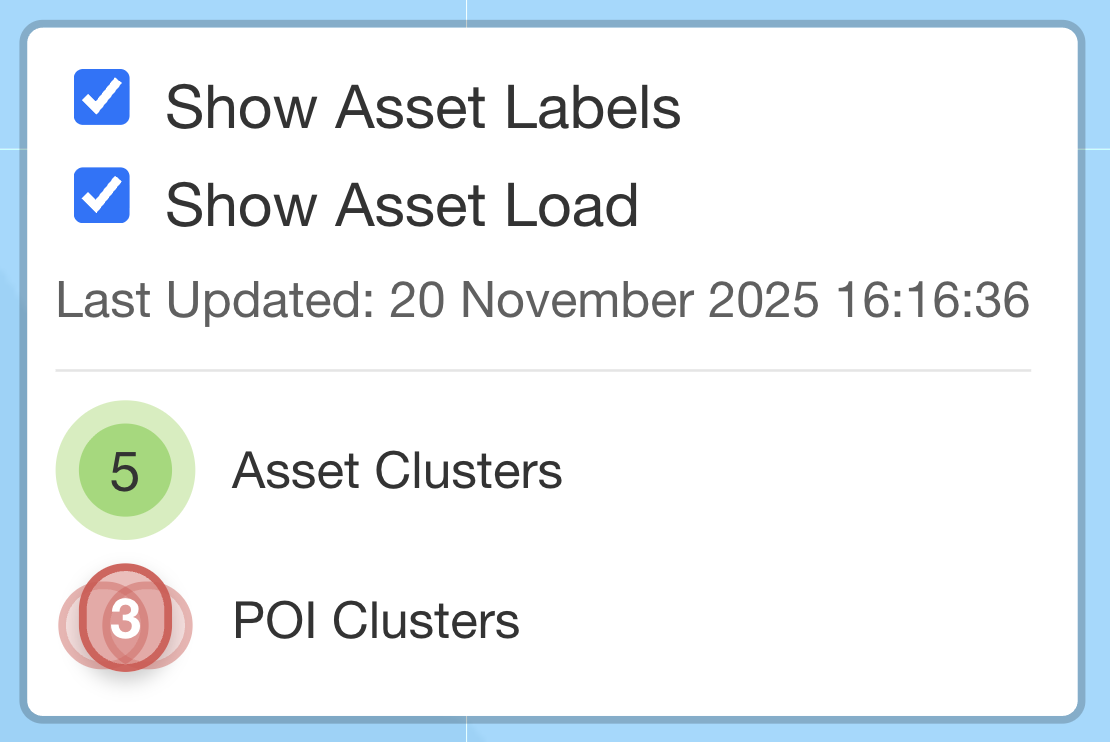
|

|
Refresh List This button opens a sidebar to see all the recent updates of the mapped assets. |

|
Fleet List Displays the list of assets currently shown on the map, along with filters to refine the asset list. |

|
Map Layers Change the map layer displayed between Map or Satellite view. |
Map Icons
Various map icons are used to mark important locations on the map. The icons mark the location of a vehicle or a POI.
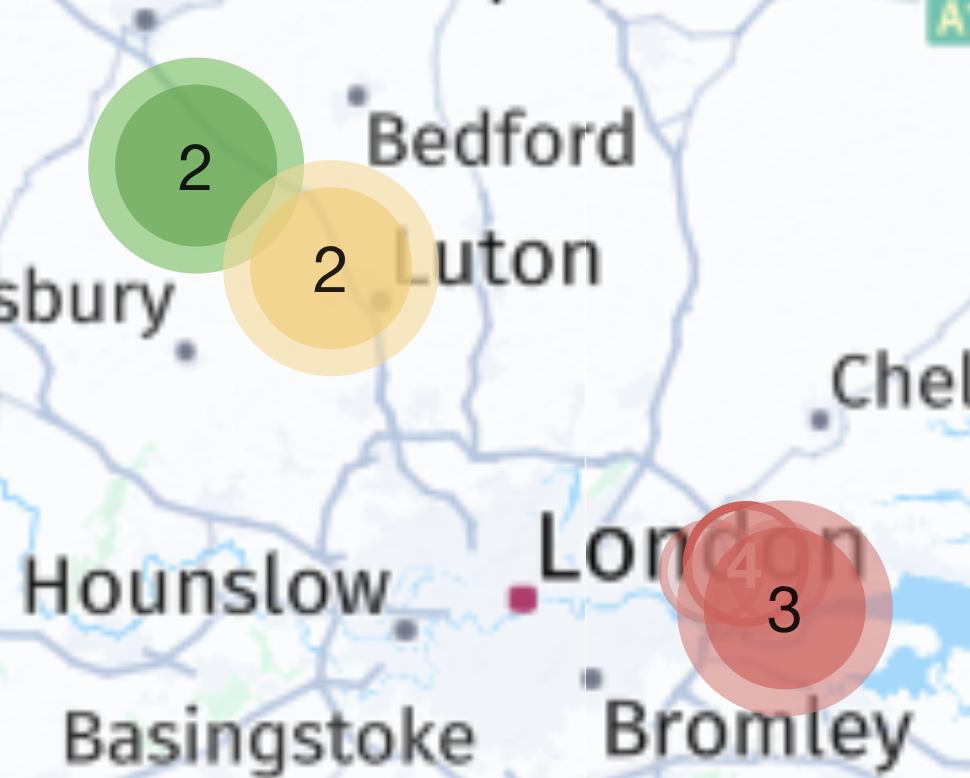
Clusters are used to represent multiple icons of the same type grouped in one area. When zooming in, the clusters may disperse into individual icons; when zooming out, the individual icons will form clusters.
POIs
Icons
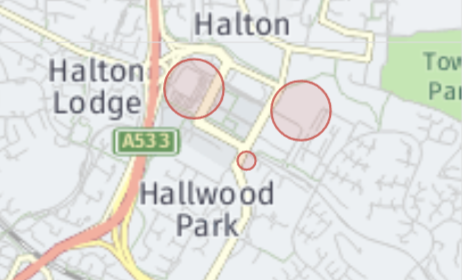
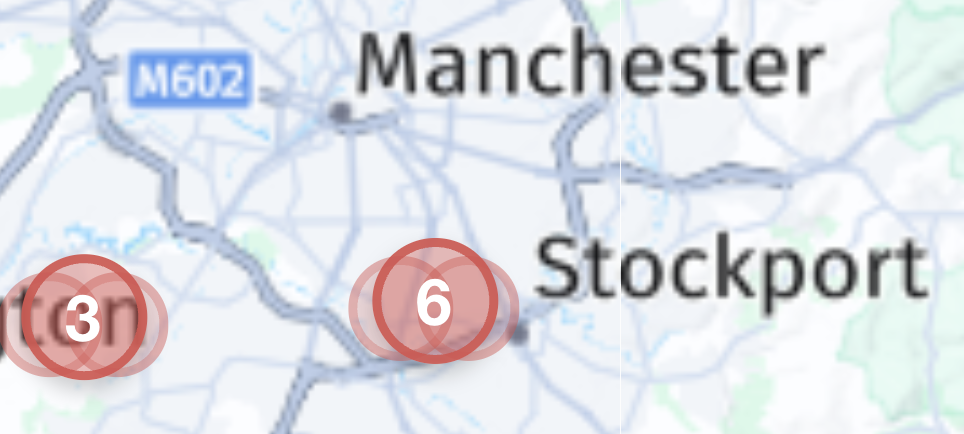
A single POI icon is a red, empty circle on the map (the sizes vary depending on the defined radius).
Clusters
A POI cluster is 3 single POI circles stacked together, with the number in the centre showing how many POIs are in the cluster.
You can click on a POI cluster to enlarge the surrounding area and display the individual POIs.
Assets
Icons
Each asset icon represents an asset in your fleet. Depending on the type of asset, it is displayed with a different icon.
🚗 Cars are displayed as blue cars.
🚚 Vans are displayed as white vans
🚛 Trailers are displayed as differently coloured trailers (the colour indicating the Asset Statuses )
Clusters
Asset Clusters are represented by large coloured circles, with the number in the centre showing how many assets are in the cluster. The colour of an asset group indicates the general condition of all the assets it contains. The cluster will be coloured according to the condition of the worst asset inside.
You can click on an asset group to enlarge the surrounding area and display the individual assets