.png)
If you suspect your Axscend Portal account has been compromised, or you have received a New Login Email, but have not logged in, please follow the steps to secure your account:
-
Change Your Password
-
If your password has been compromised and you no longer know it, reset your password.
-
-
Logout of All Devices
-
Contact your Fleet Team and/or Axscend Support for any more support needed.
Change Your Password
You’re logged in to the Axscend portal.
You know your current password.
-
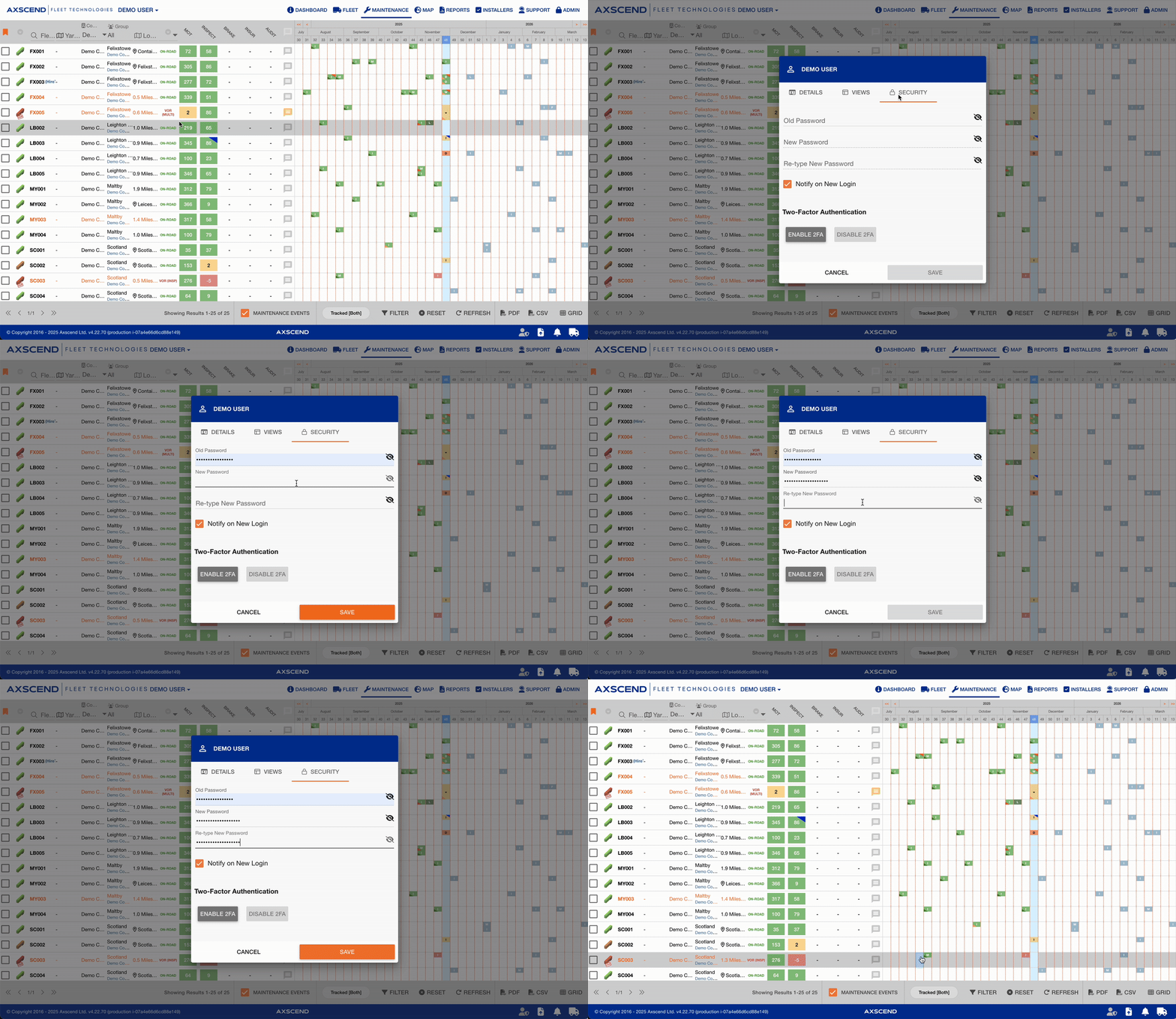
Click on your Username.
-
The user menu will open.
-
-
Click Edit User in the drop-down.
-
A pop-up will open.
-
-
Click on the Security tab.
-
Enter your old password.
-
Enter your new password.
-
Re-type the new password.
-
Click the Save button once the new password is strong enough.
Your password has been changed.
Password Security
Look for the red warnings under the Password field. They inform you that your password:
-
is either not long enough,
-
not secure enough
-
or does not match the confirmation field.
Alternatively - Reset Password
If you already know your password and wish to reset it for security reasons, see Changing Your Password.
You’re on the Portal login page.
You have an active account.
-
Click Forgotten Your Password.
-
Enter your e-mail address.
-
Click Send Password Reset Link.
-
Click the link in the e-mail.
-
Enter your e-mail address.
-
Enter your new password.
-
Click RESET PASSWORD.
Your password has been reset.
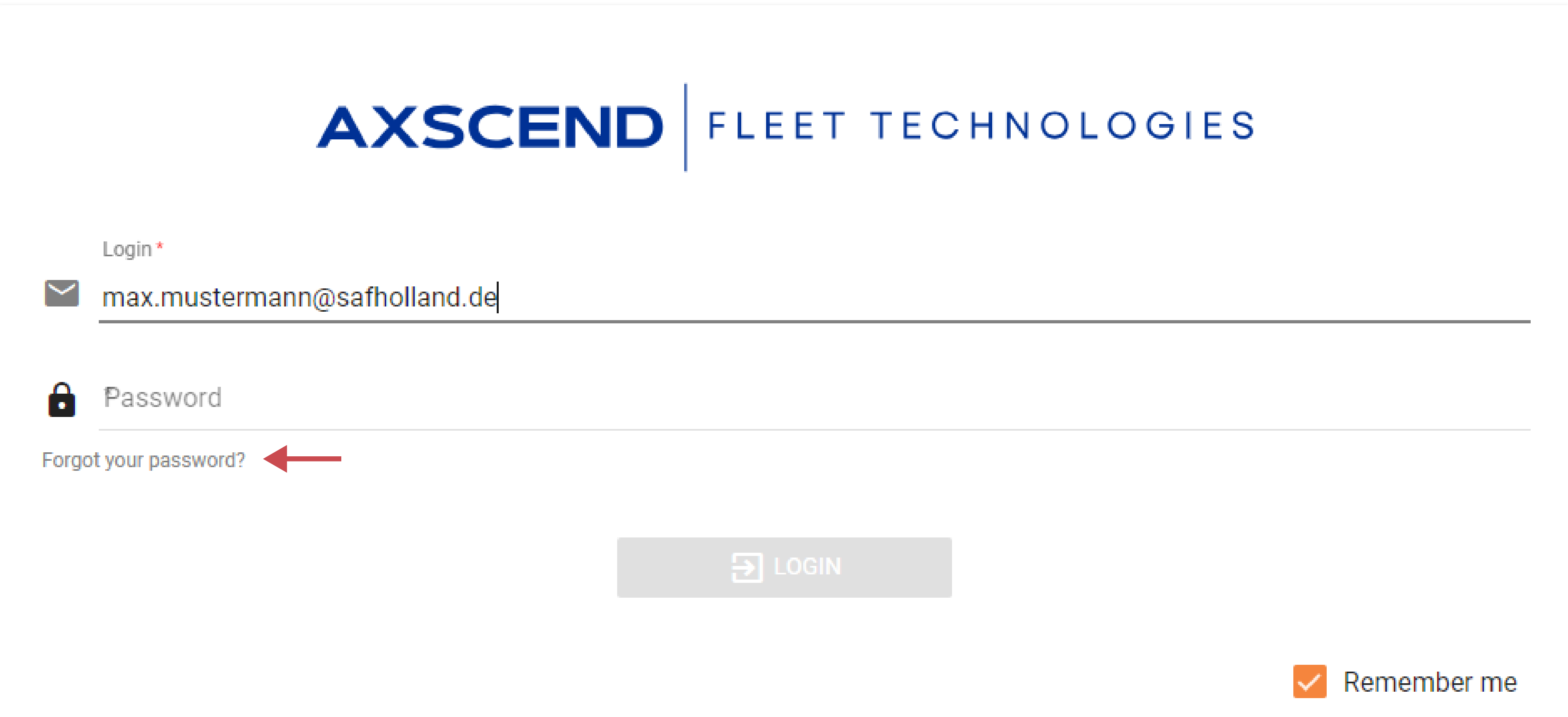
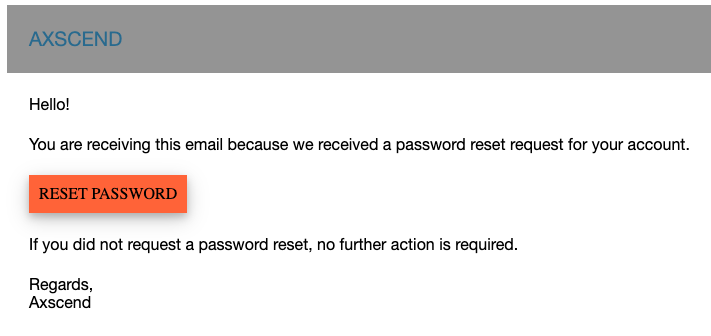
You’ll receive an email with a password reset link. If you don’t receive an email within 15 minutes, please contact the Axscend support. The email should look like the one below:
Logout of All Devices
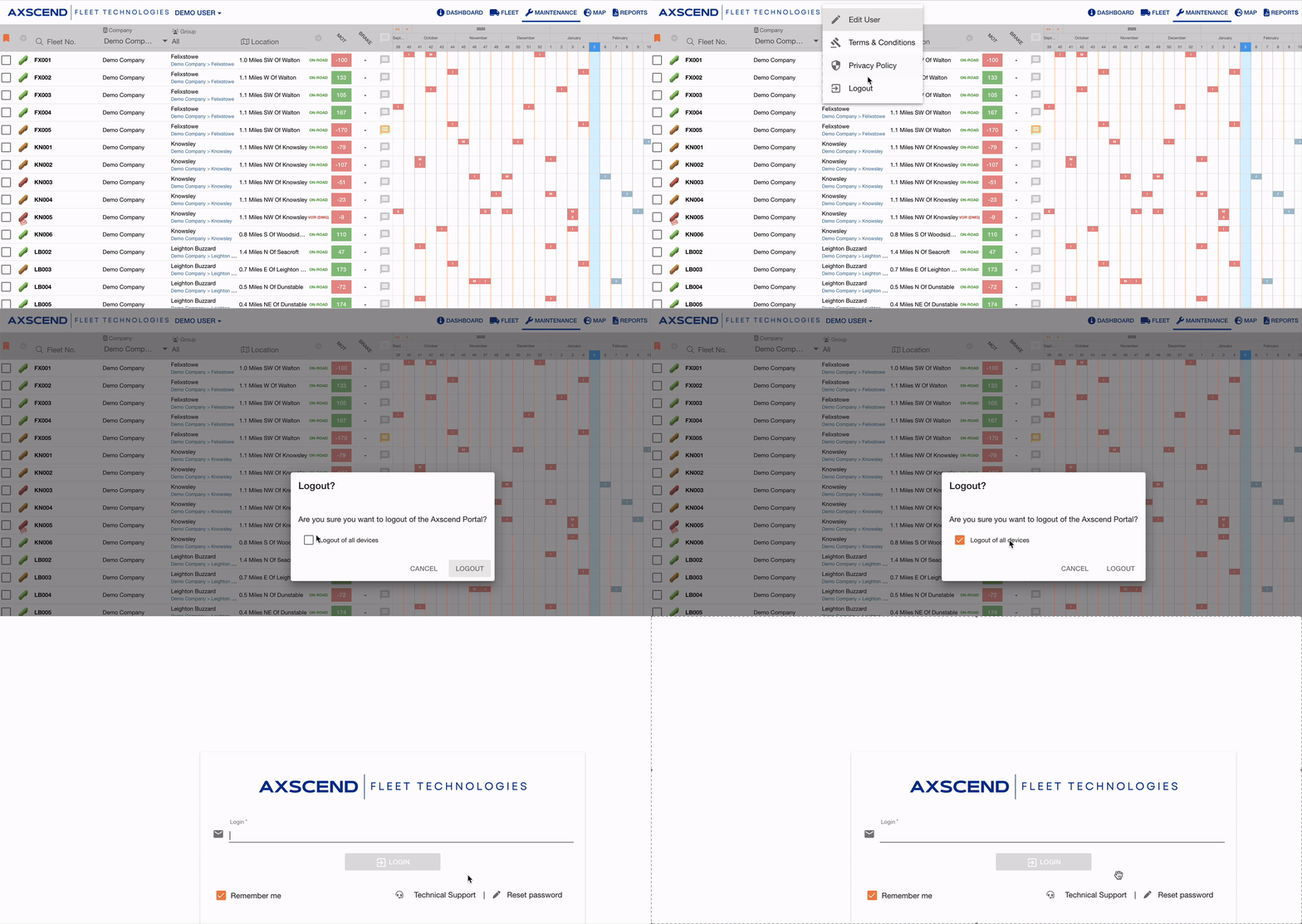
To log out of all devices:
-
Click your Username in the navbar
-
Click Logout
-
Check Logout of all devices?
-
Click Logout to confirm
You have been logged out of all sessions.
Contact your Fleet Team and/or Axscend Support
Informing the relevant personnel about any potential security breach is crucial for securing your account and reversing any unauthorised or malicious changes.
It’s also important to notify your Fleet Team, as the breach may have originated from higher up in the chain, such as a compromised Outlook account.