.png)
Changing Another User’s Password
Go to the Manage Users page to see how to get here.
You have access to the Manage Users page.
-
Click Admin in the navigation bar.
-
A drop-down will open.
-
-
Click Manage Users in the drop-down.
-
The Manage User page will open.
-
-
Select the user you want to change the password of in the user list.
-
The editor will open.
-
-
Type in the new password in the password field.
-
Re-type the new password in the field below.
-
Once the passwords match, you’ll be able to change the user’s password.
-
-
Click Save
The user’s password has been changed.
Resetting Another User’s Password
You have access to the Manage Users page.
-
Click Admin in the navigation bar.
-
A drop-down will open.
-
-
Click Manage Users in the drop-down.
-
The Manage Users page will open.
-
-
Select the user whose password you want to reset in the user list.
-
Click Send this user a password reset email?
-
Click Reset Password.
The user will receive an email to reset their password.
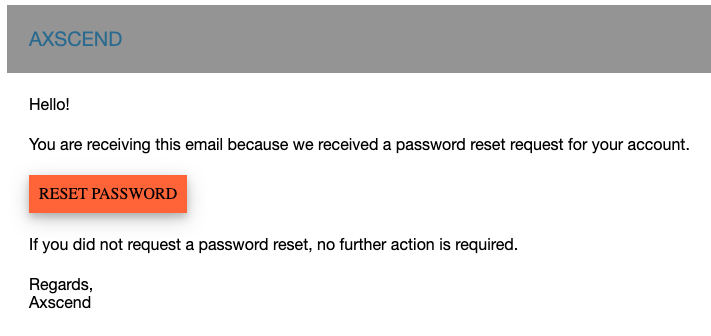
The user will receive an email to reset their password. If they don’t receive an email within 15 minutes, please contact the Axscend support.
The email should look as the one below: