.png)
Asset Notes have been transferred to Asset Comments. Asset Comments now allow more than one note to be stored against an asset. You can also reply directly to other comments.
You’re onThe Fleet Grid.
Viewing Comments
-
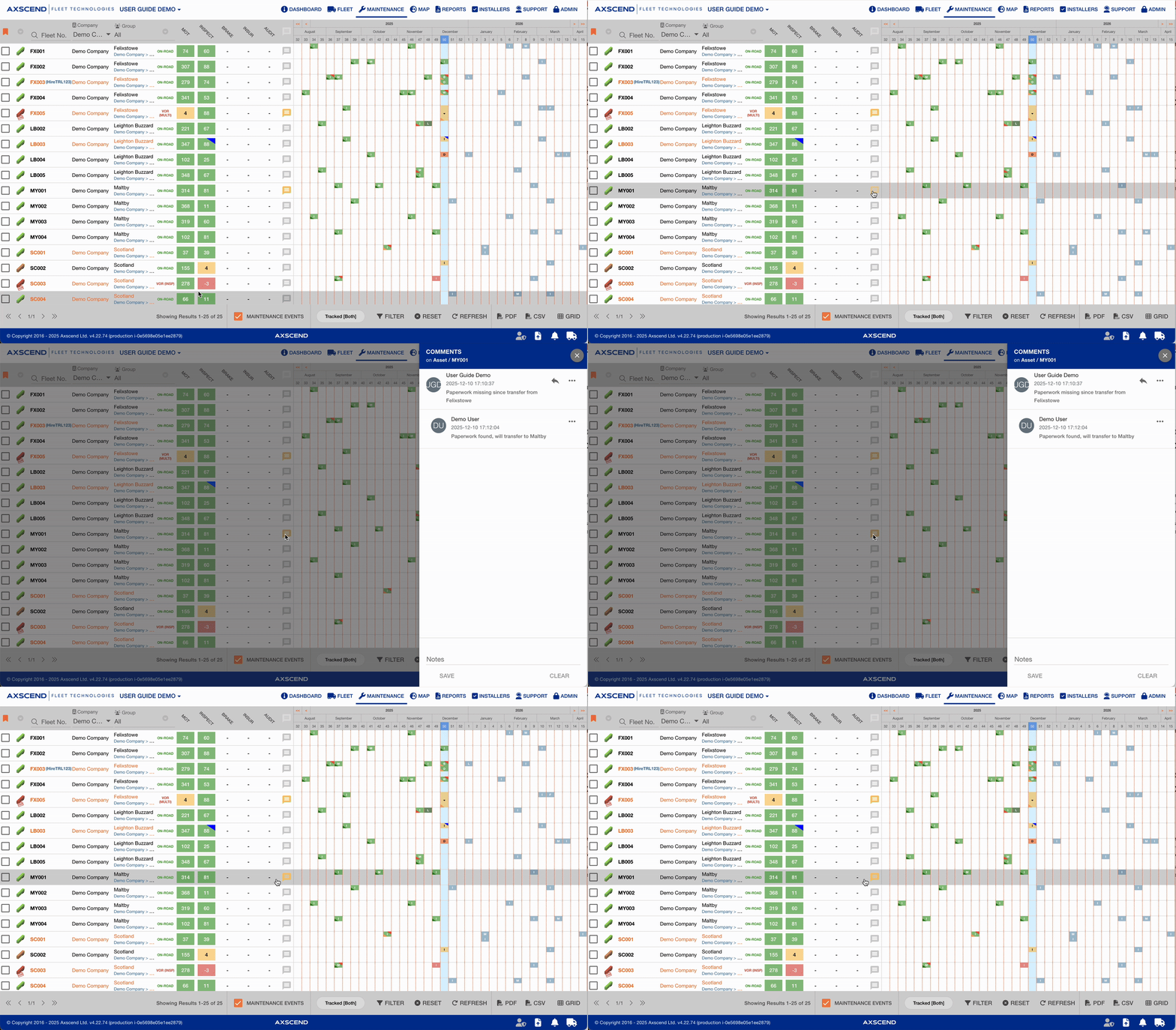
Click on the speech bubble
-
Yellow speech bubbles already have comments.
-
Grey speech bubbles have no comments yet.
-
-
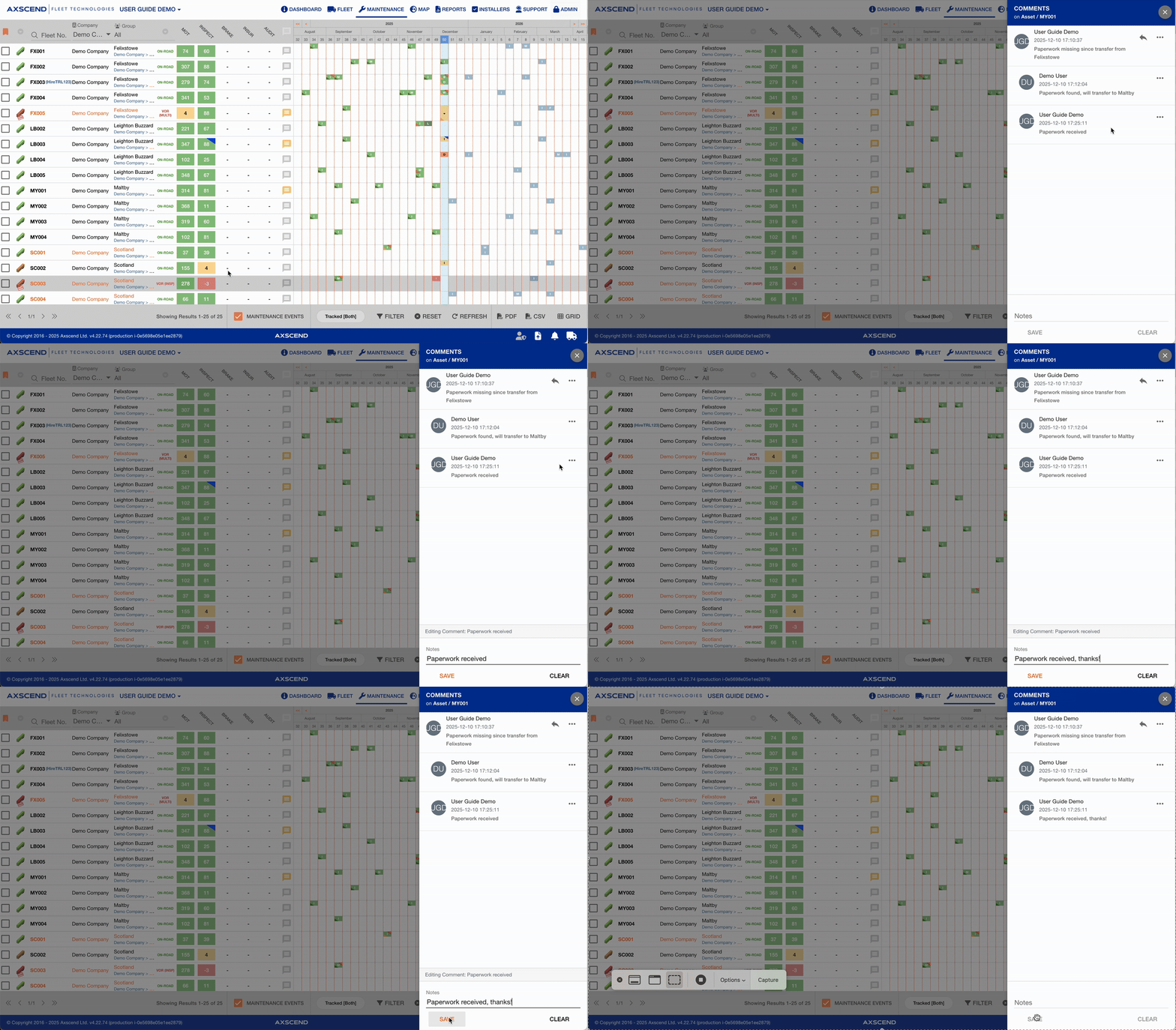
The Asset Comment thread will open.
Adding Comments
You can either add a new comment or reply to a comment on the thread.
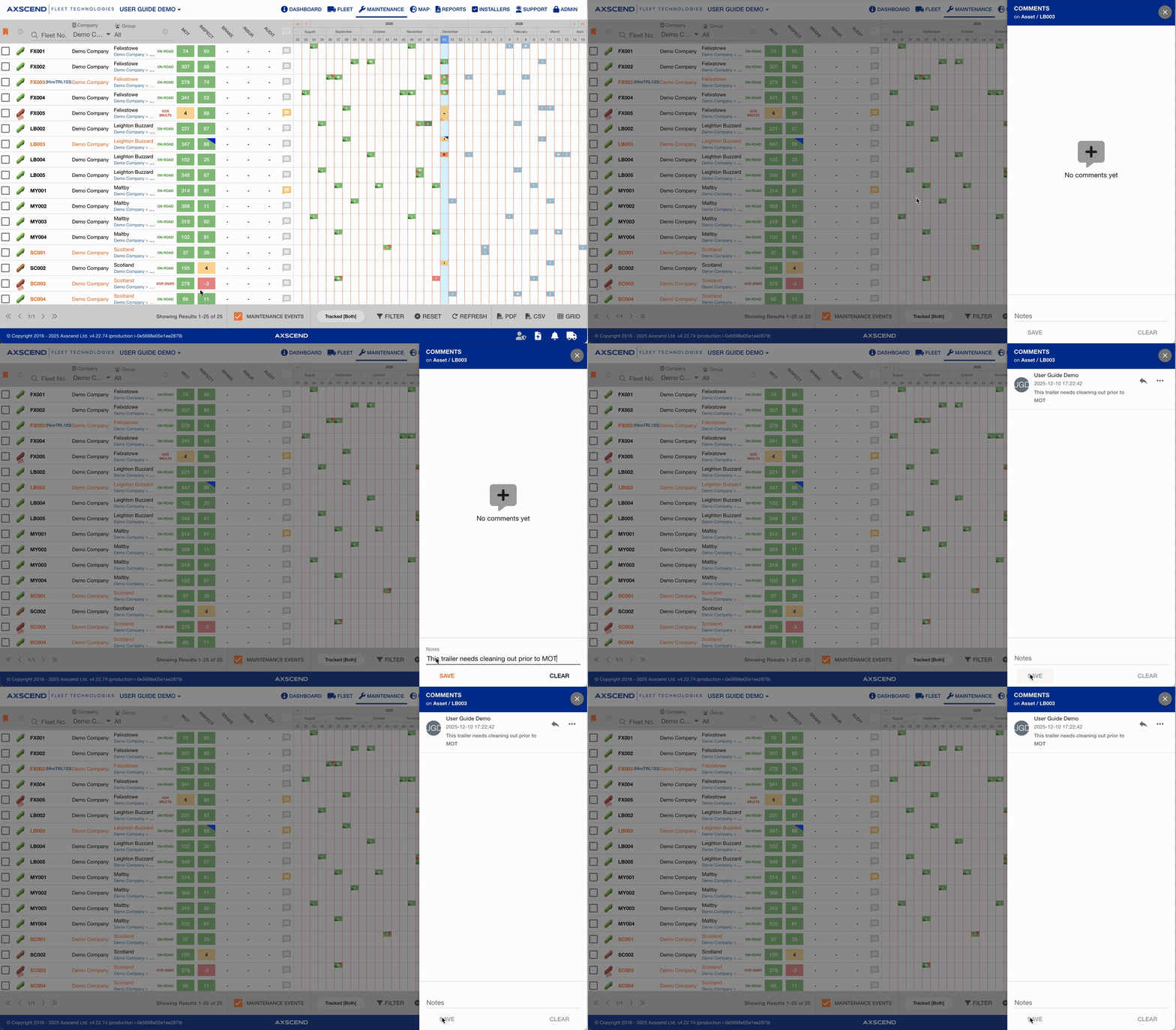
To add a new comment:
-
Type your comment in the text box
-
Click Save
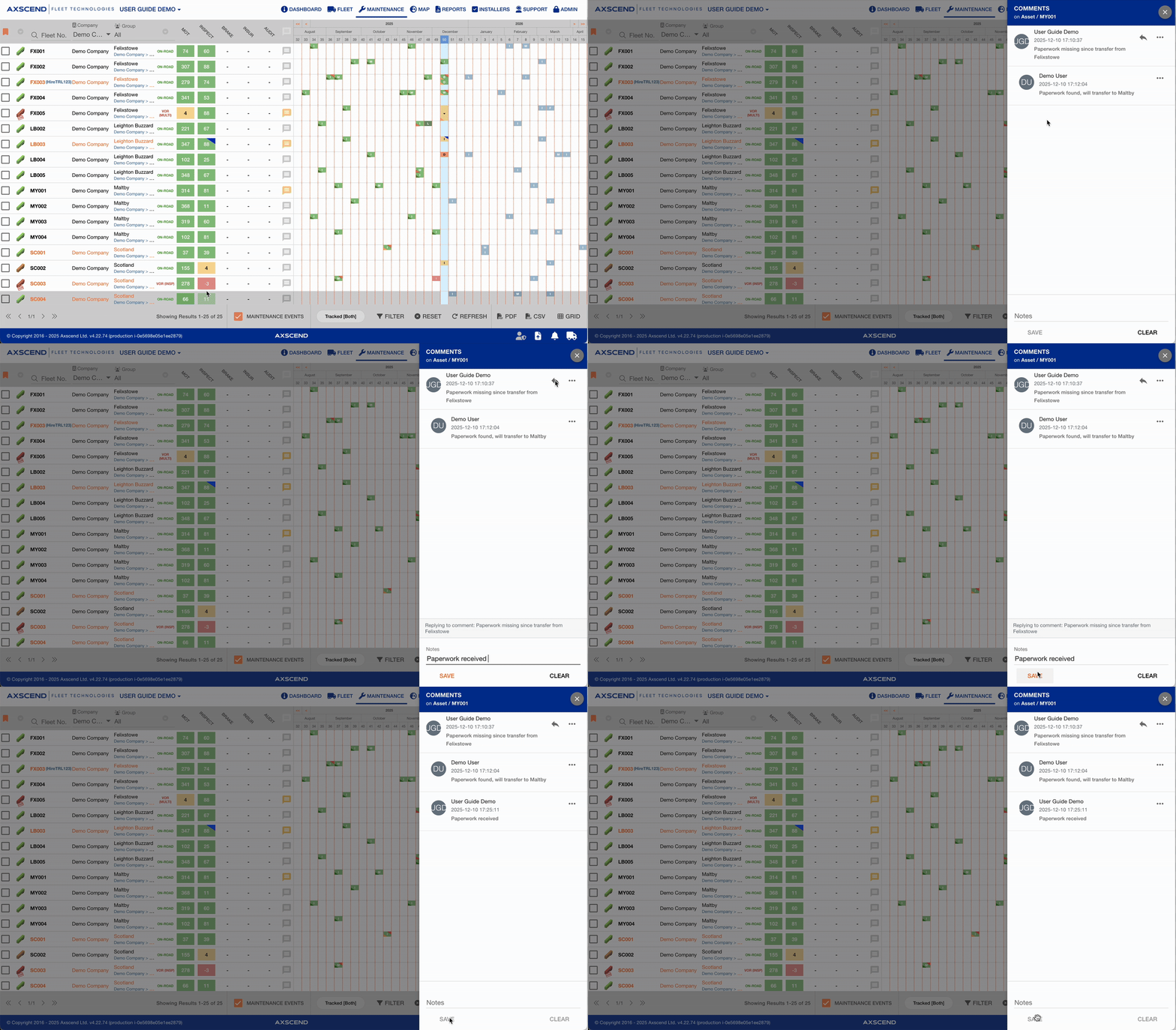
To reply to a comment:
-
Click the

-
Type your comment in the text box
-
Click Save
Editing Comments
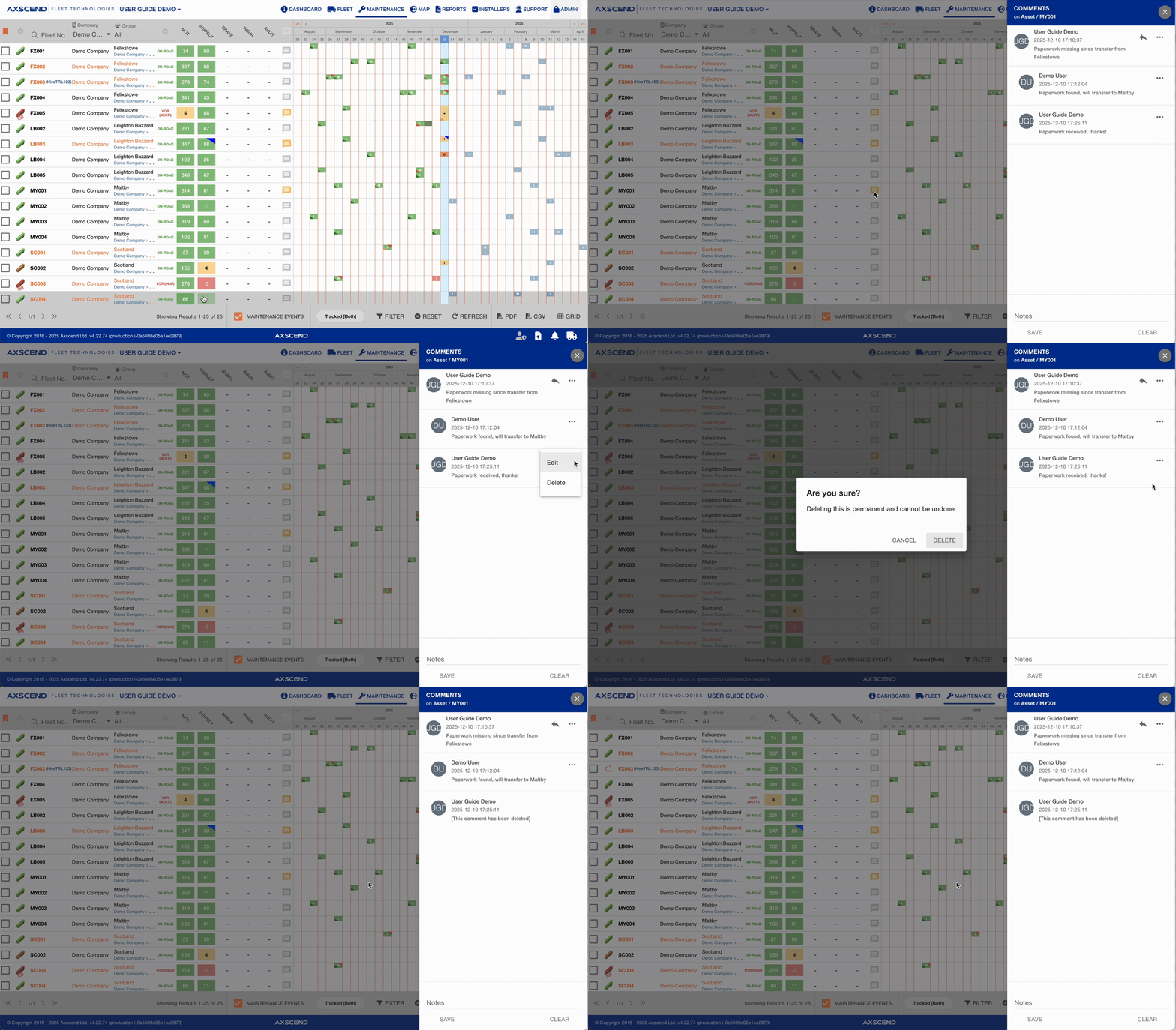
You can only edit your own comments.
-
Click the … icon next to the comment you want to edit.
-
Click Edit
-
Make the changes in the text field
-
Click Save
Deleting Comments
You can only delete your own comments.
Deleted messages will still appear in the comment thread, but will be redacted.
-
Click the … icon next to the comment you want to edit.
-
Click Delete
-
A dialog will pop up to confirm this action
-
Click Delete again
-