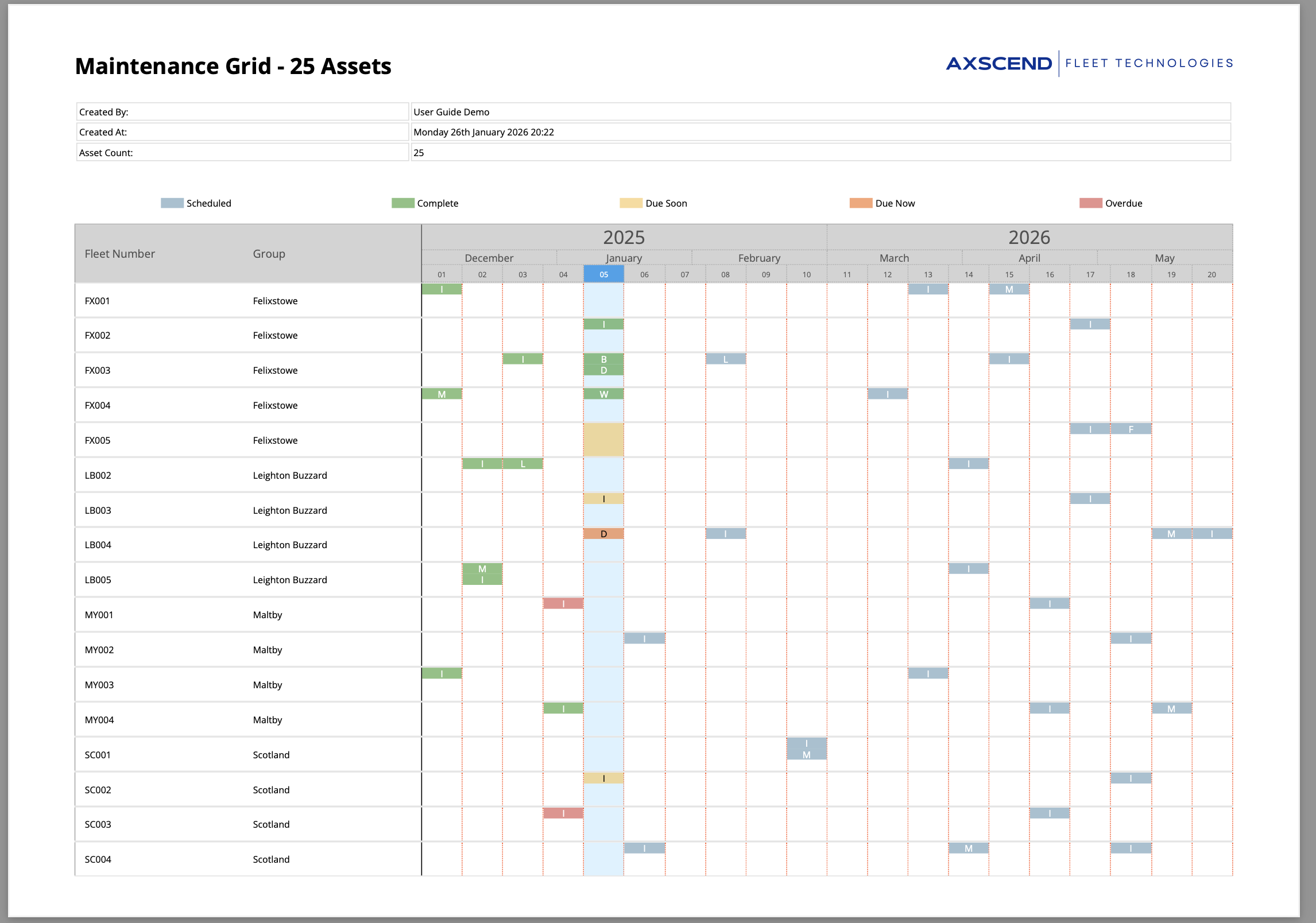
.png)
At the bottom of The Fleet Grid or The Maintenance Grid you will see three export options.

PDF Export
-
Click the PDF button to open the menu.
-
You will see three options:
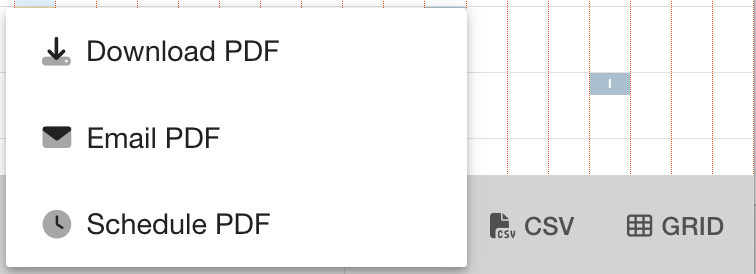
You can:
-
Download an instant copy of the PDF.
-
Recieve the PDF by email
-
Schedule the PDF as a scheduled report.
-
Clicking this option will open a dialog
-
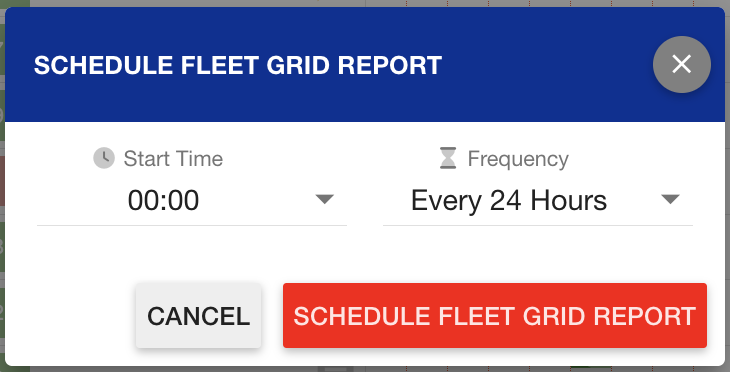
-
Click Schedule Fleet Grid Report
-
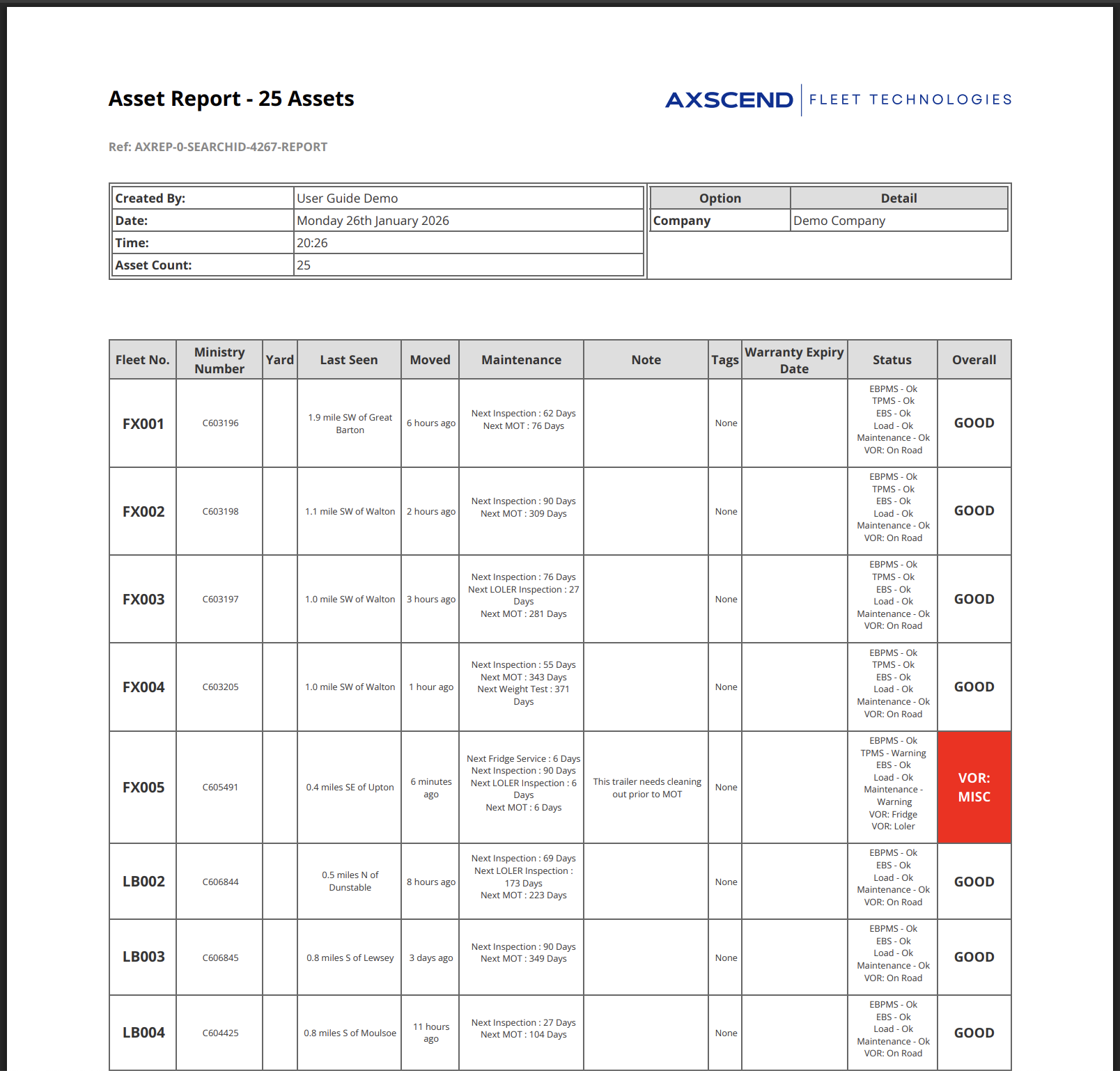
You may see the following message when your PDF is too big to instantly download.
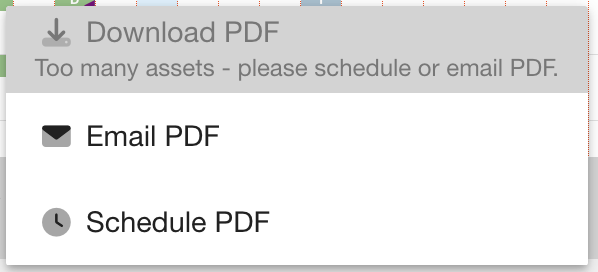
In this case, you should email the PDF. This gives the server more time to process your request.
CSV Export
-
Click the CSV button to open the menu.
-
You will see three options:
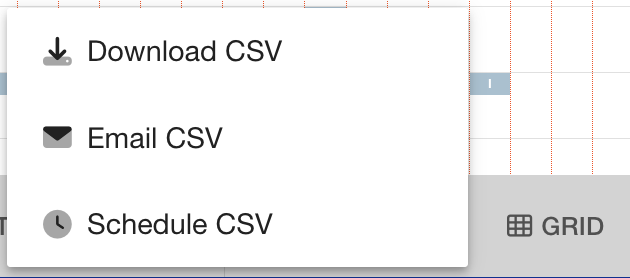
You can:
-
Download an instant copy of the CSV.
-
Recieve the CSV by email
-
Schedule the CSV as a scheduled report.
-
Clicking this option will open a dialog
-
-
Click Schedule Fleet Grid Report
-

You may see the following message when your CSV is too big to instantly download.
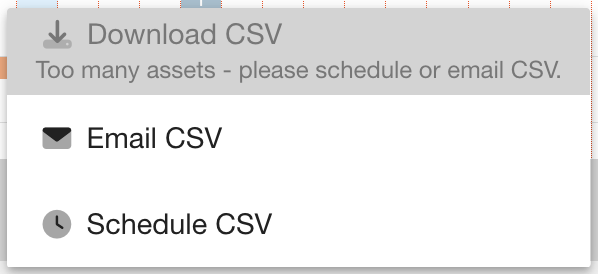
In this case, you should email the CSV. This gives the server more time to process your request.
Grid Export
This export will email you a stylised copy of the Maintenance Grid.
-
Click the Grid button to export the Maintenance Grid.
-
A confirmation dialog will show
-

-
Click Confirm
-
The Grid will be emailed to you.