.png)
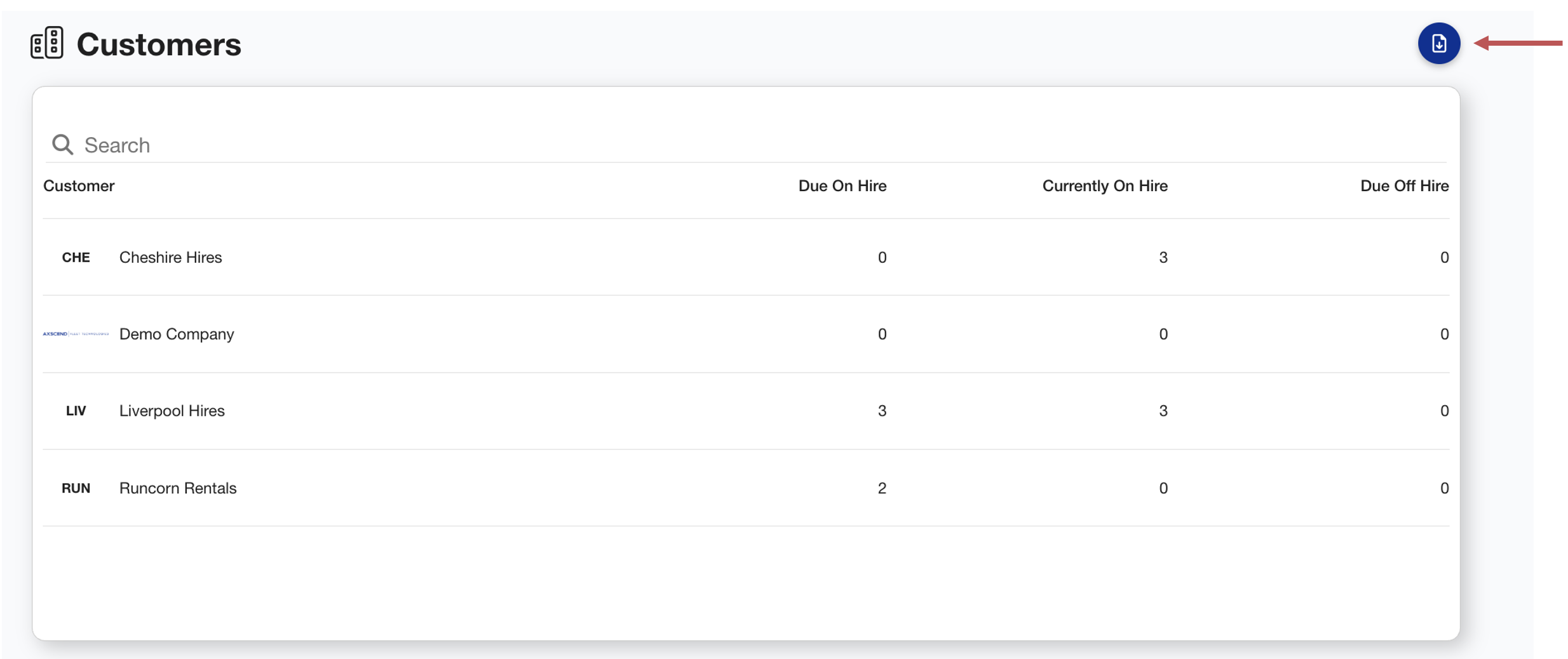
Go to the Rental Customers page to see how to get here.
You can request additional customers on Customer Requests.
On the Customer Management section, you can view the customers you are authorised to rent to, along with a summary of assets (on hire, due on hire, and due off hire).
You can view Customer Details by clicking on a row from the table.
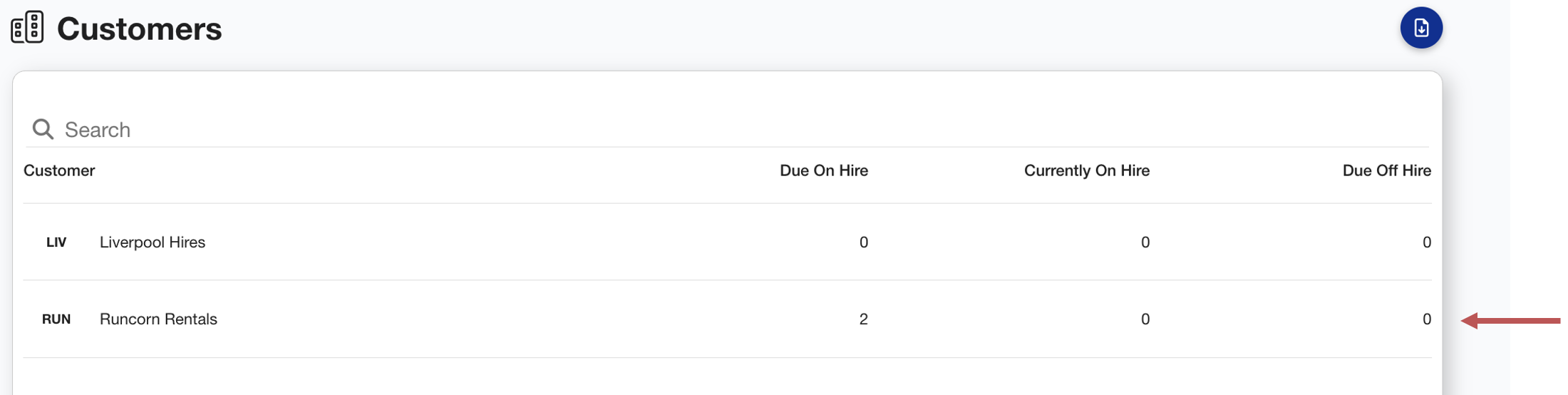
This will open a Customer Details dialog with several tabs along the top. The tabs allow you to:
-
View assets currently on hire
-
View assets due on hire
-
View assets due off hire
-
Edit customer settings
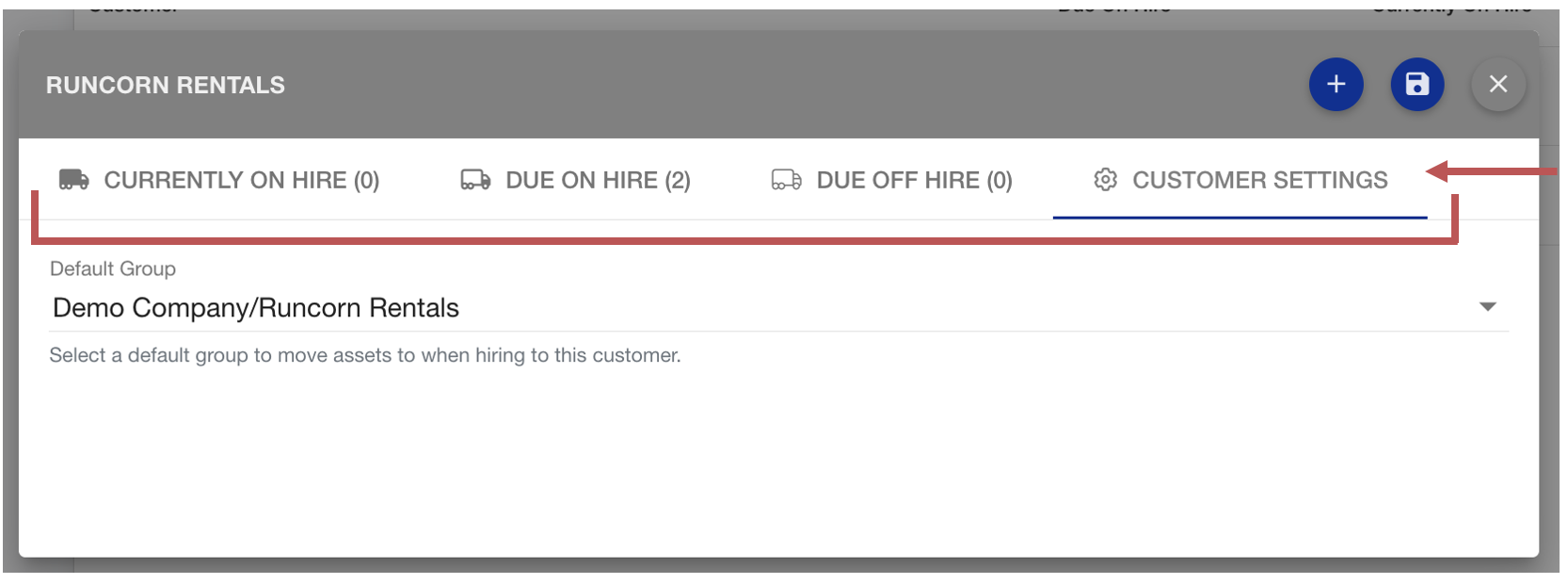
Editing Customer Default Hire Group
This is the default group that rented assets will move to within your company when you hire assets to this customer.
-
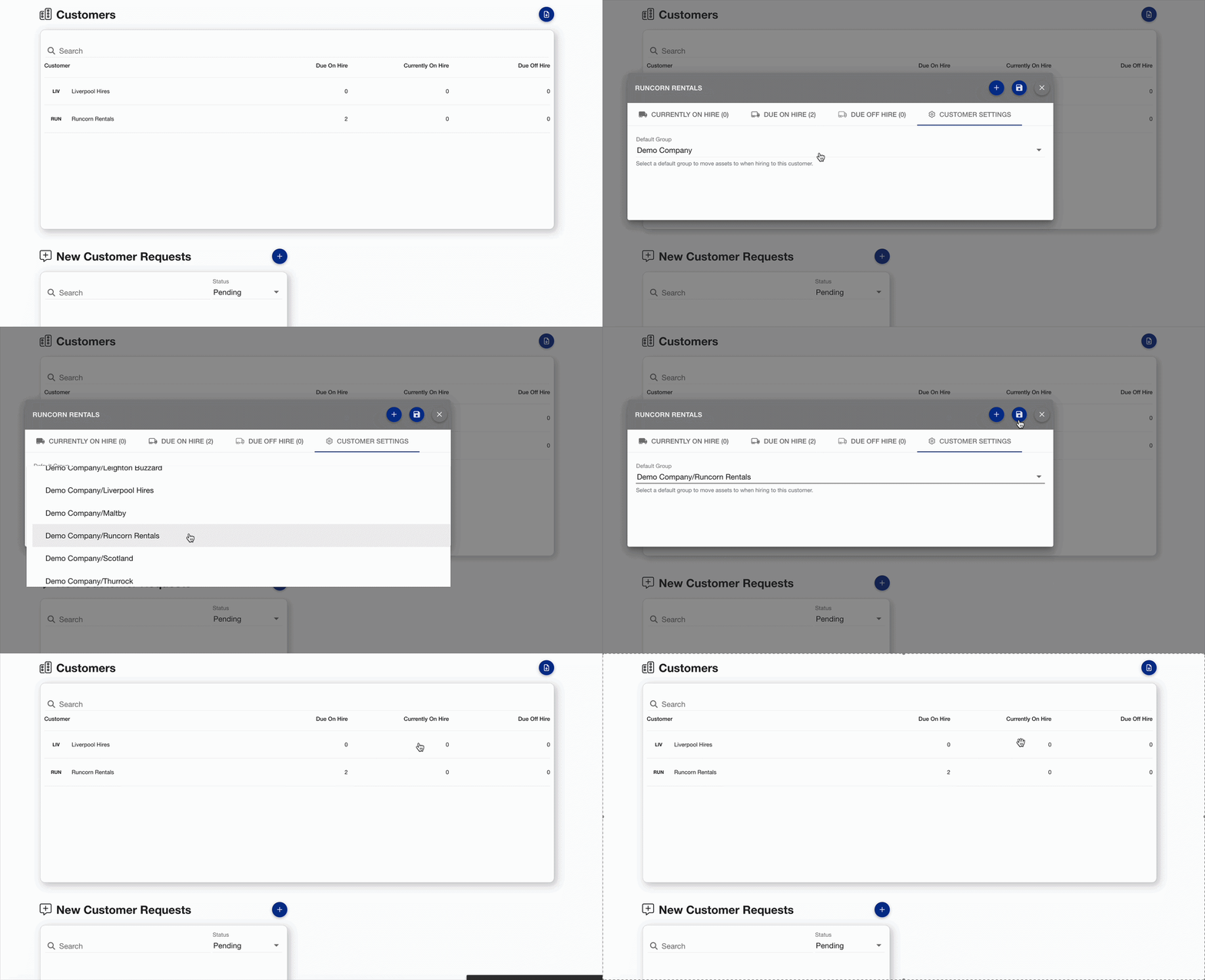
Click the Customer Row from the table
-
The Customer Details dialog will open
-
-
Click on the Customer Settings tab
-
Change the Default Hired Group
-
Click the Save icon
The Default Hired Group has been updated.
Download Customers as CSV
To download the customer list as a CSV
-
Click the CSV icon
The report has been downloaded.