.png)
You’re on the Rental Actions page.
You’re on the Manage Rentals section.
The Manage Rentals section is where you control the full lifecycle of your asset hires. This includes creating new rentals and updating or ending existing ones.
The three main actions available are:
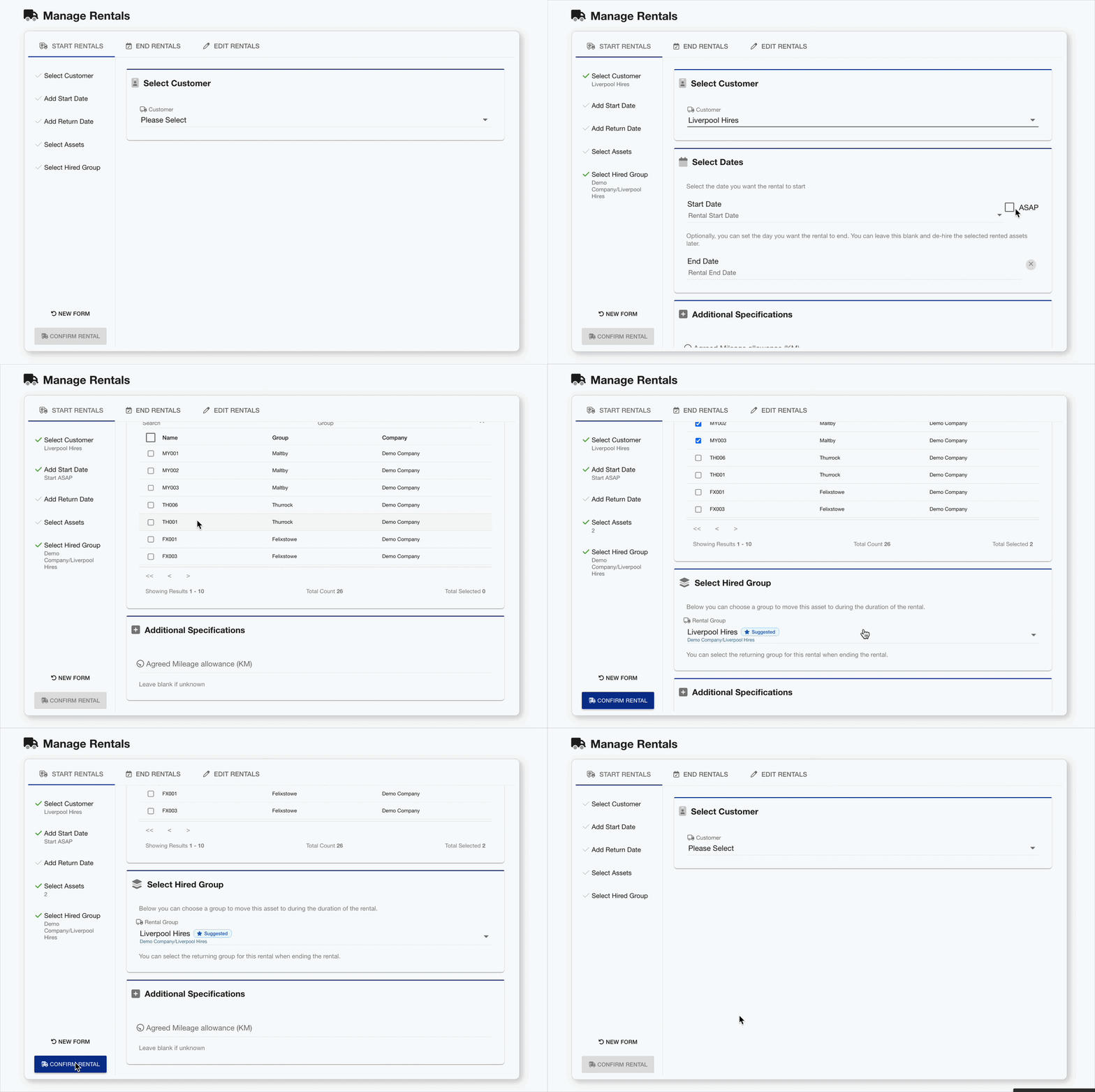
Start Rentals
Create rentals by assigning assets to a customer, along with a start date. Once the rental starts, the asset becomes available in the customer’s system, including access to its telematics data.
-
Select the rental customer
-
Select a start date, or choose start ASAP
-
Optionally, choose an end date
-
-
Using the checkboxes, select the assets to hire
-
Select Hired Group
-
Optionally, if you have selected an end date, you’ll also be prompted for a return group.
-
-
Optionally, enter the mileage agreement of the rental.
-
Click Confirm Rental
The rentals have been created.
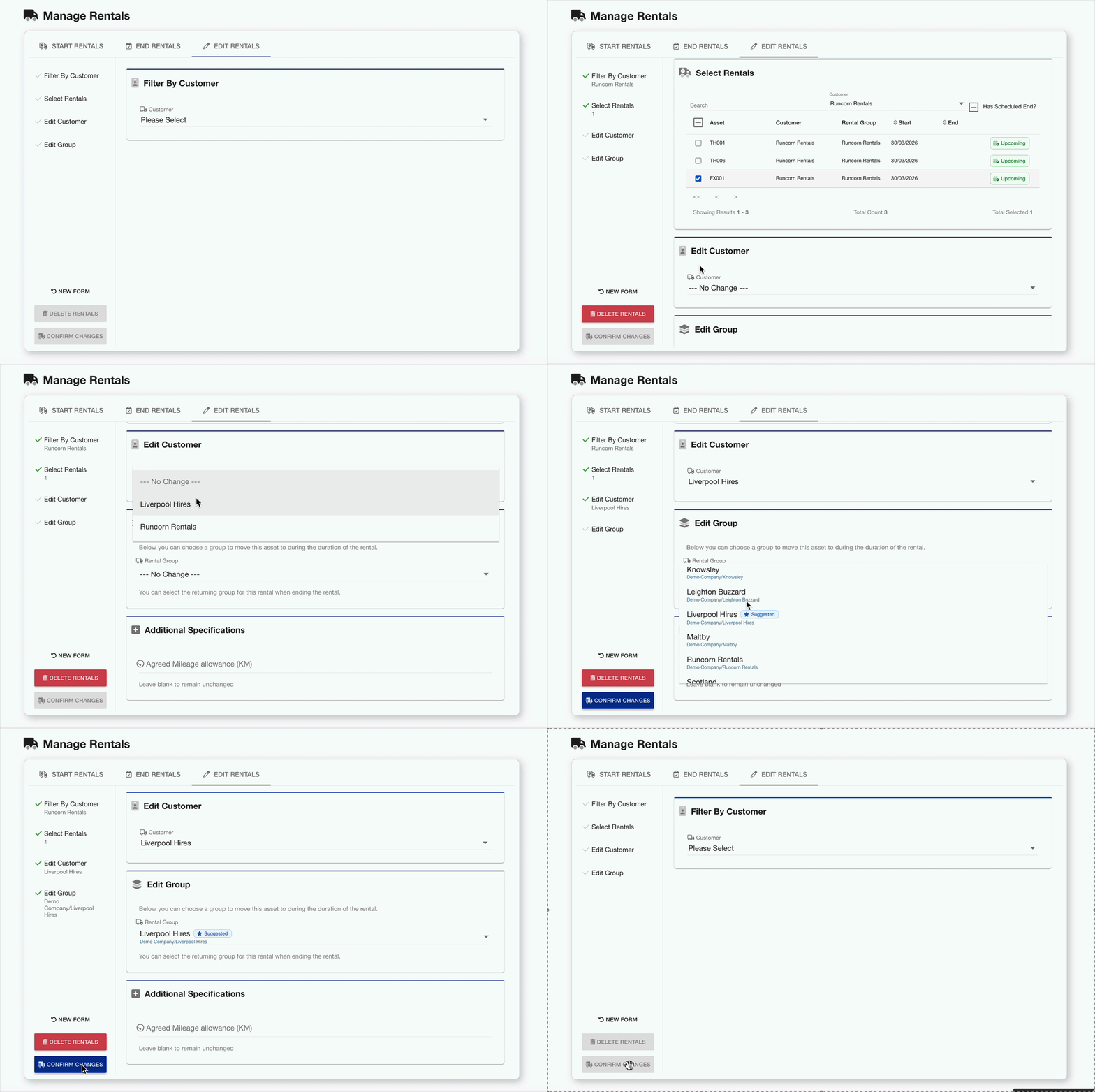
Edit Rentals
You can only edit upcoming Rentals. Once a rental has started, you can no longer edit the customer or the Rental Group.
Update existing rentals in bulk, including the customer and rental group.
-
Select the rental customer
-
Using the checkboxes, select the rentals to edit
-
Make the relevant edits to:
-
Customer
-
Rental/Hire Group
-
-
Click Confirm Changes
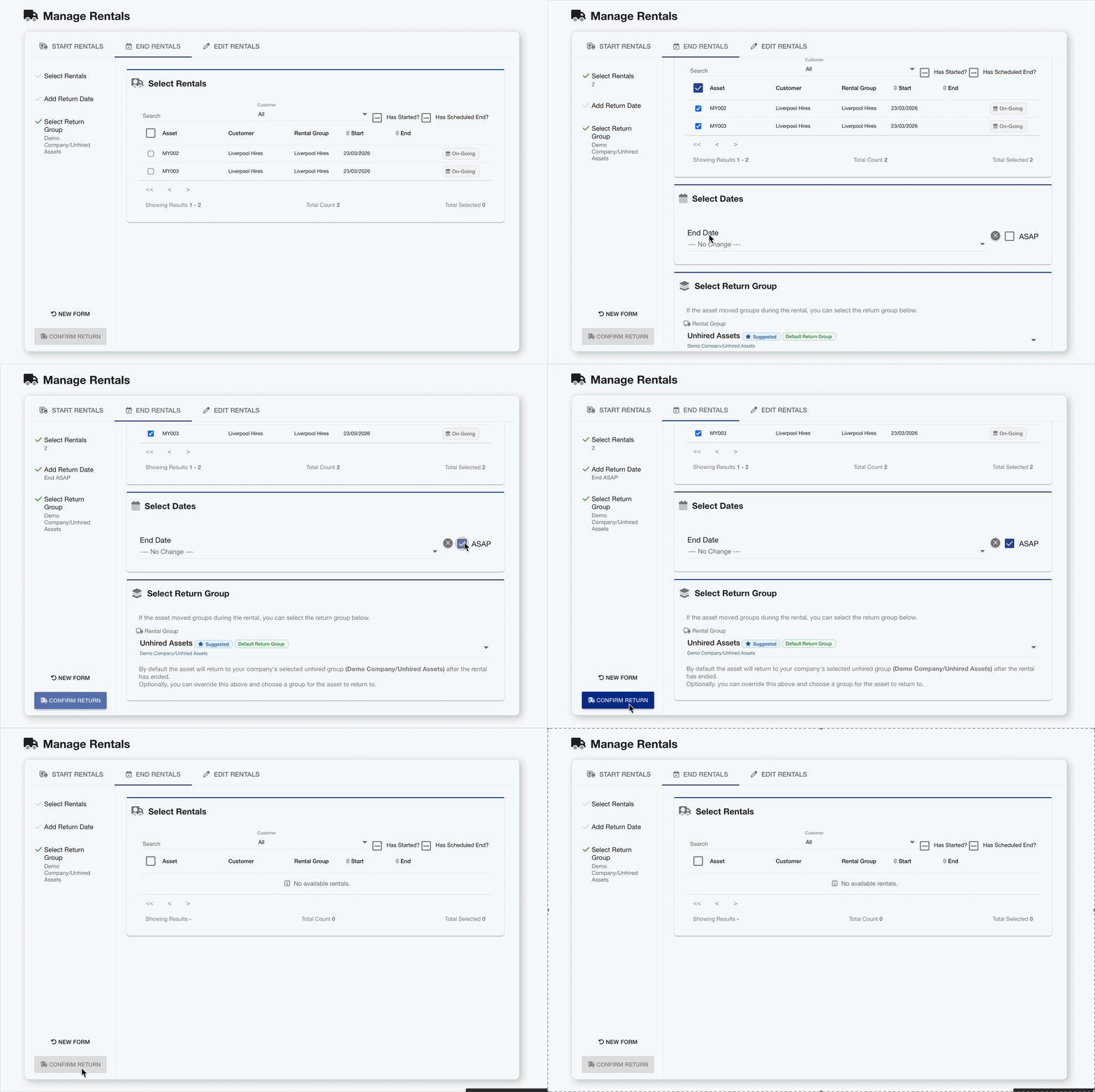
End Rentals
End existing rentals in bulk, including selecting a Return Group for the asset to return to.
-
Using the checkboxes, select the rentals to end
-
Select an end date, or choose end ASAP
-
Optionally, edit the return group.
-
Click Confirm Return
The rentals have been ended.
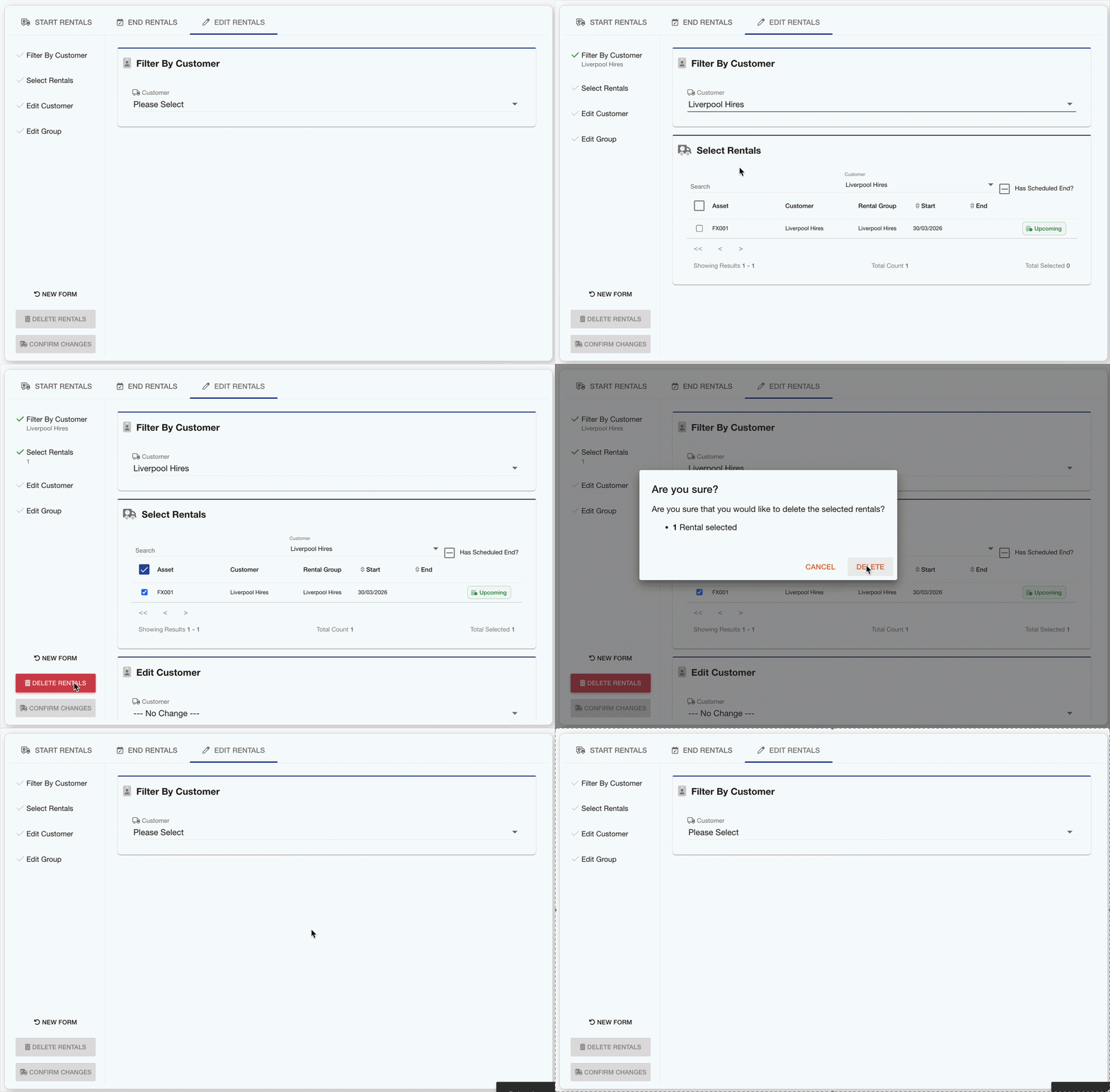
Delete Rentals
You can only delete upcoming Rentals. Once a rental has started, you can no longer delete this rental and should instead end this rental.
Delete existing rentals in bulk:
-
Select the rental customer
-
Using the checkboxes, select the rentals to delete
-
Click Delete Rentals
-
You will be prompted to confirm the action
-
Click Delete
-
The rentals have been deleted.