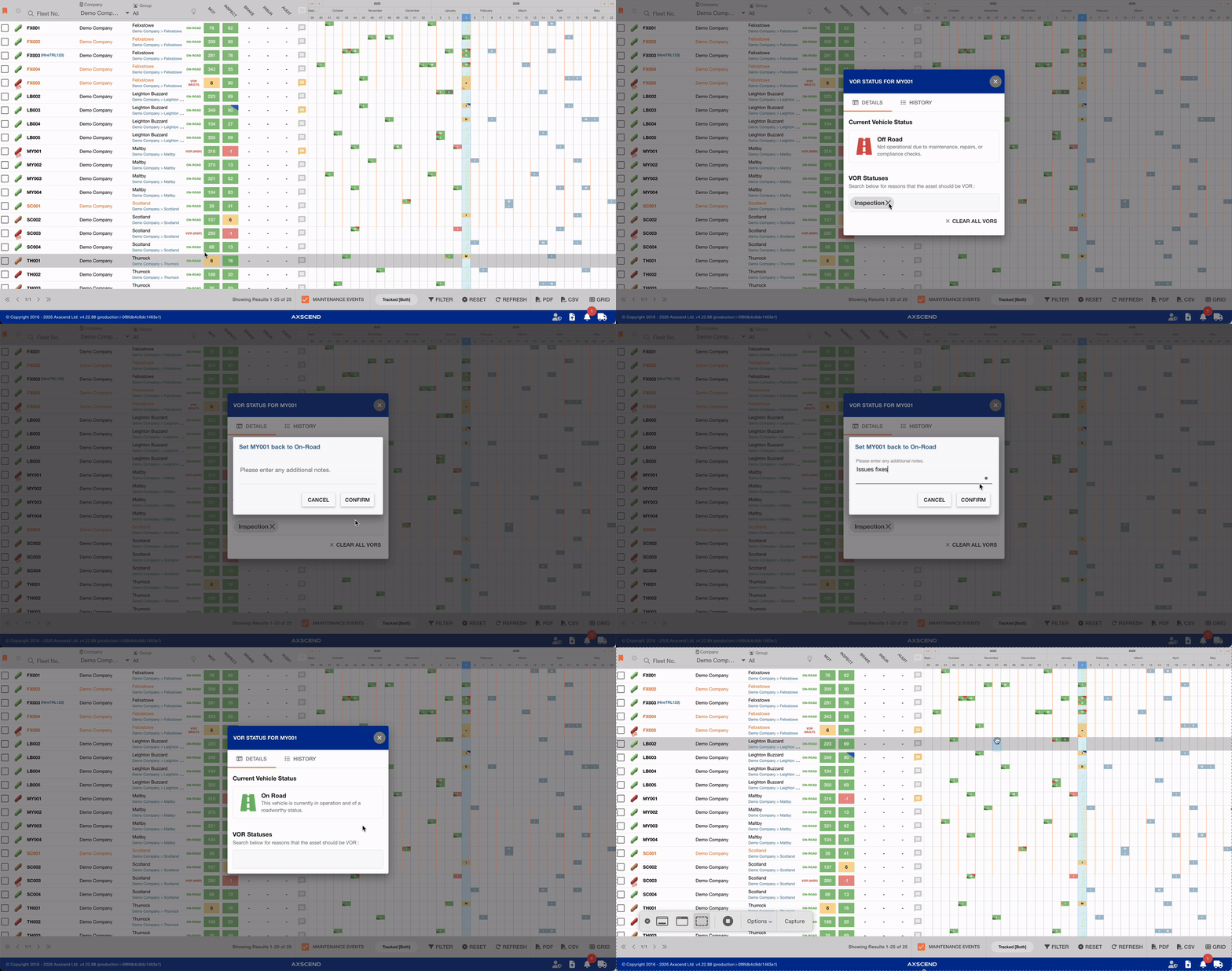
.png)
This action can be done on the Fleet Grid/Maintenance Grid, or on an Asset View page.
You’re on the Asset View
You have permission to edit VOR statuses.
You have the Status column enabled in your view.
-
Open the Asset View of the relevant asset
-
Open the Summary section
-
Click on the asset’s status icon
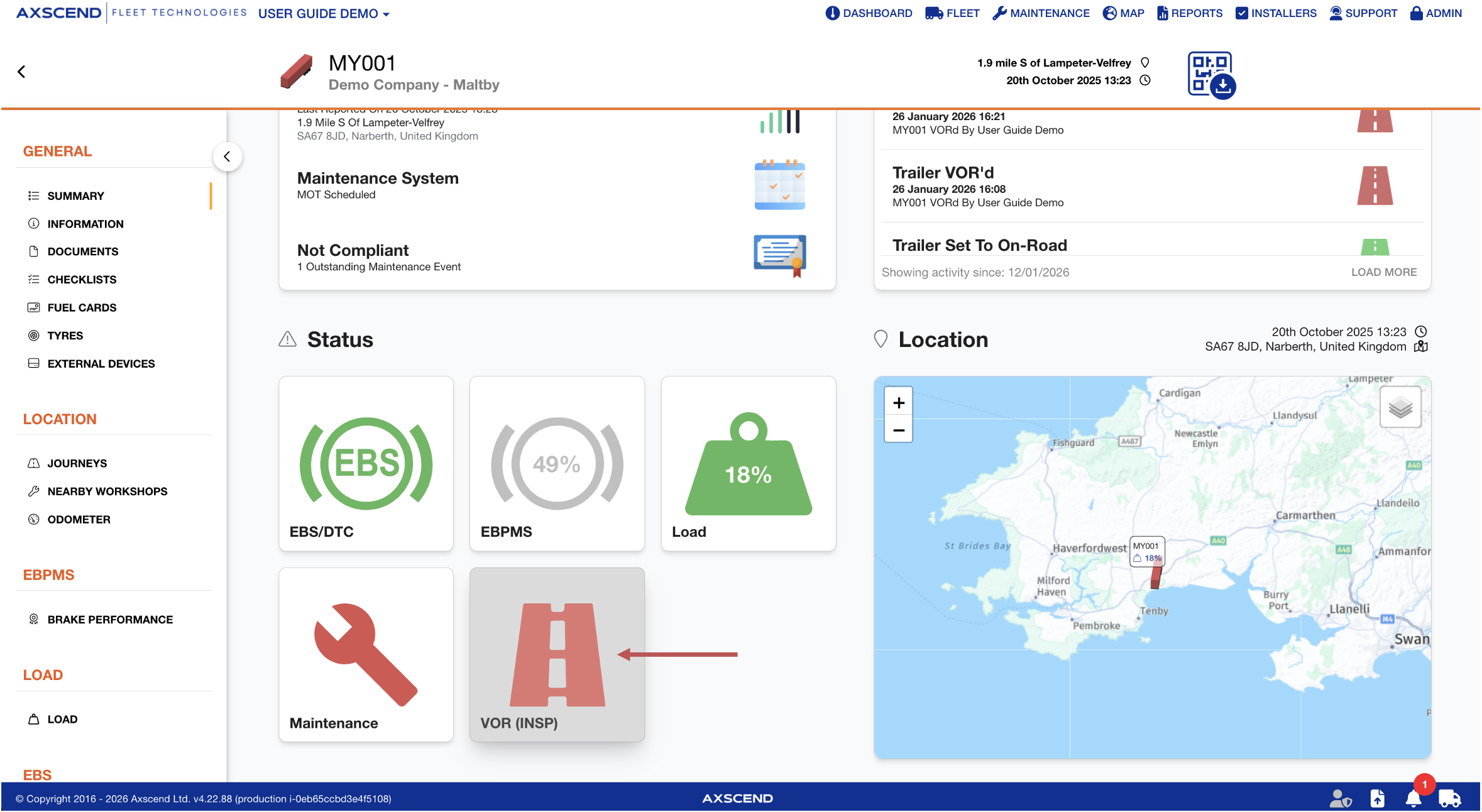
-
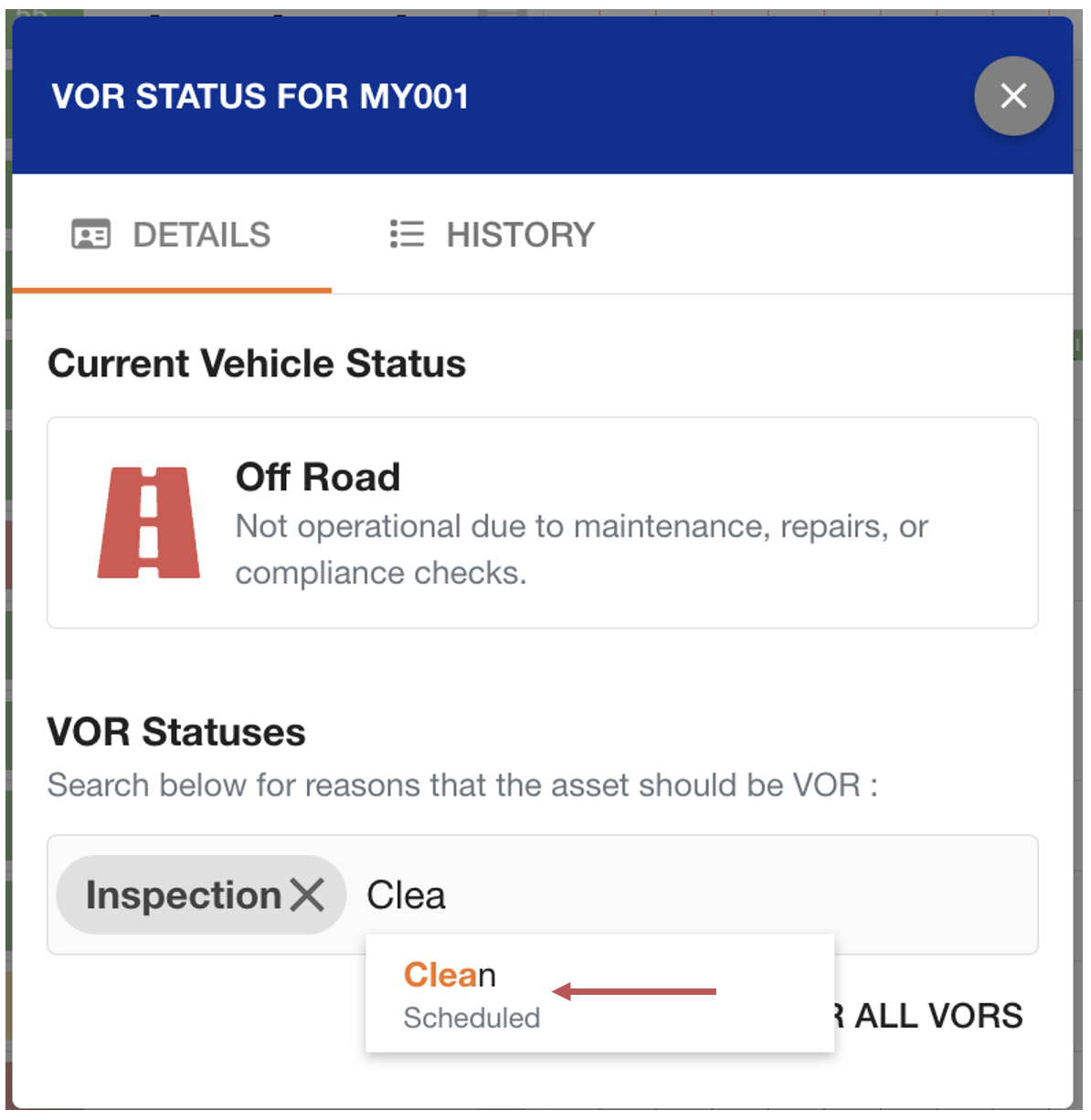
A dialog box showing the Asset's status will open.
|
Here you can either: |
|
|---|---|
|
Clear All VORs - this will set the vehicle back to On-Road. |
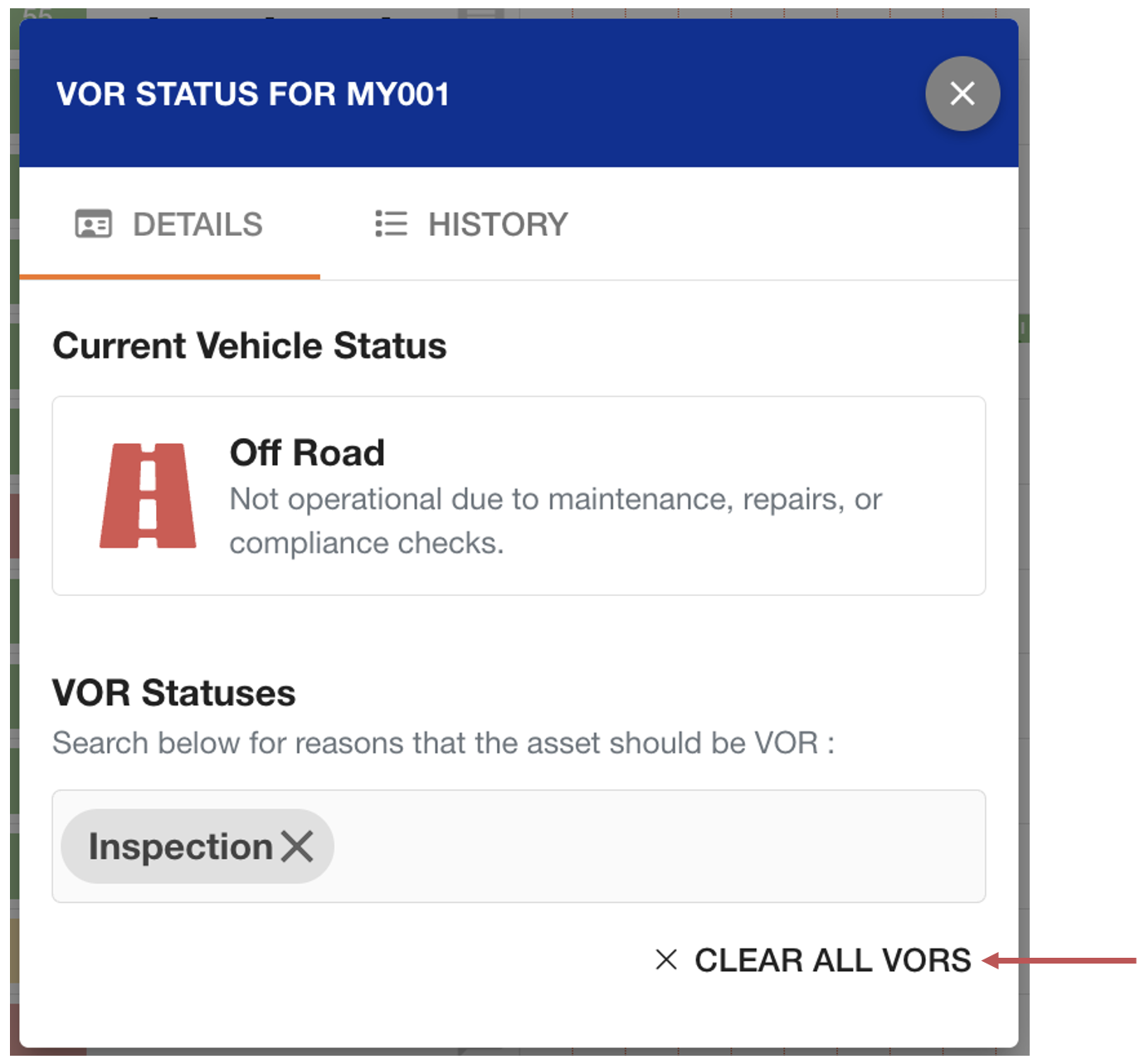
|
|
Remove individual VOR statuses - this will not set the vehicle back On-Road unless all VOR reasons are removed. |
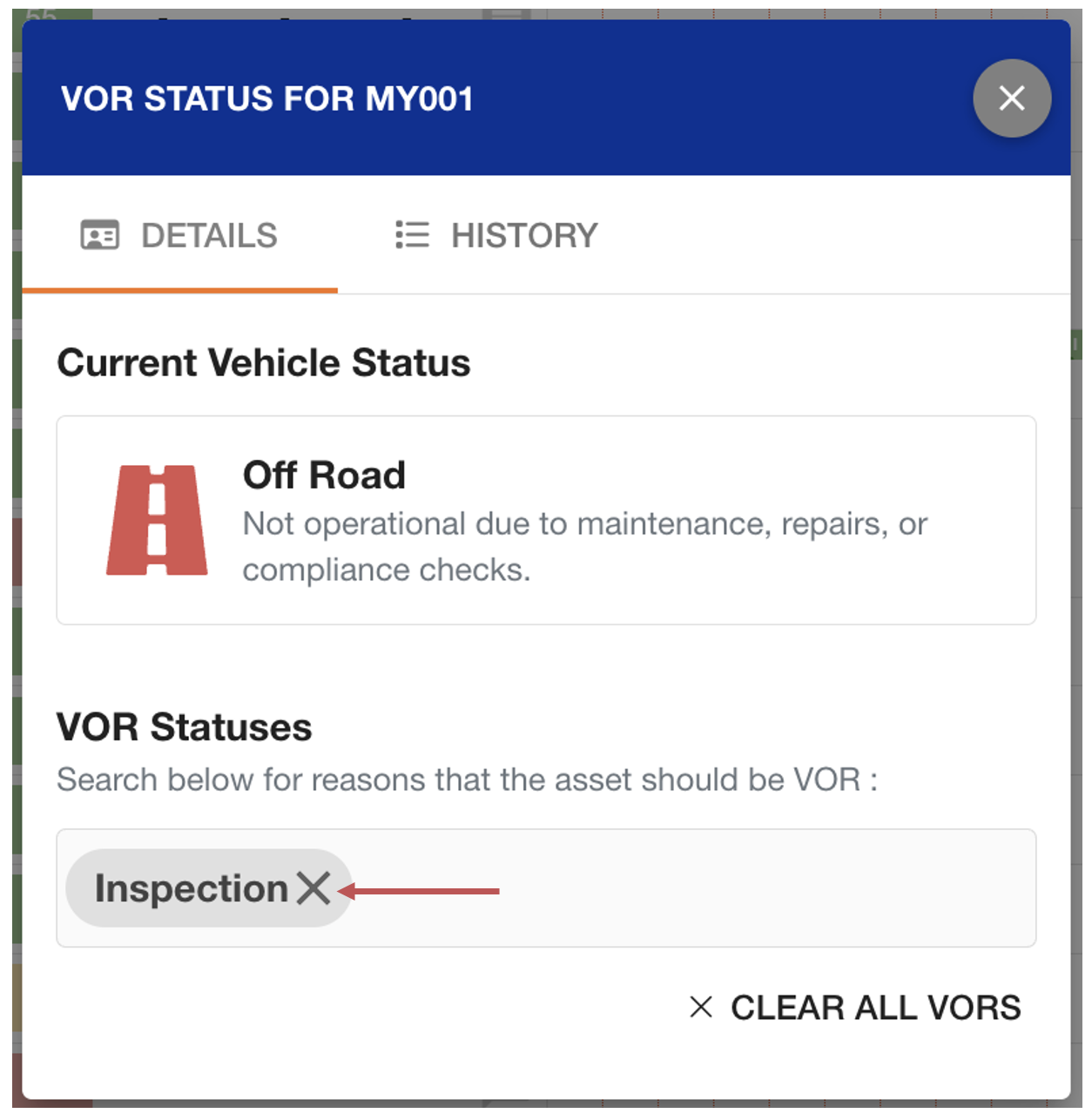
|
|
Add individual VOR statuses - if the vehicle is currently On-Road, this will VOR the vehicle. |
|
-
If prompted, enter additional notes.
-
Click Confirm.
-
Close the dialog box
The asset’s status has been changed to On-Road.